
Comp Tables allow you to compare multiple securities, funds, or portfolios side by side. This tool is particularly useful for evaluating investment options and printing them onto a PDF to make informed decisions.
Getting Started
Fast Track
Frequently Asked Questions
Getting Started
How to Build a Comp Table
1. Head to the Comp Tables tool, a blank table should then appear.
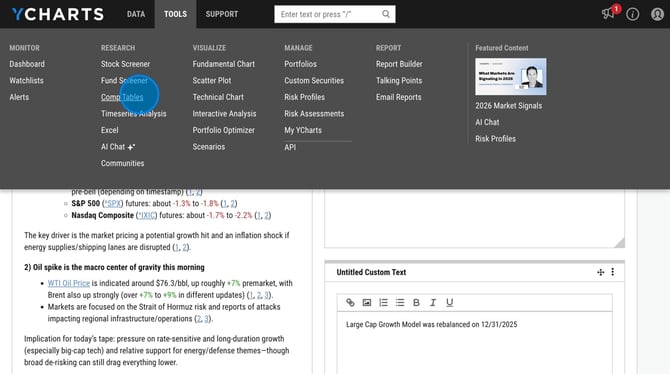
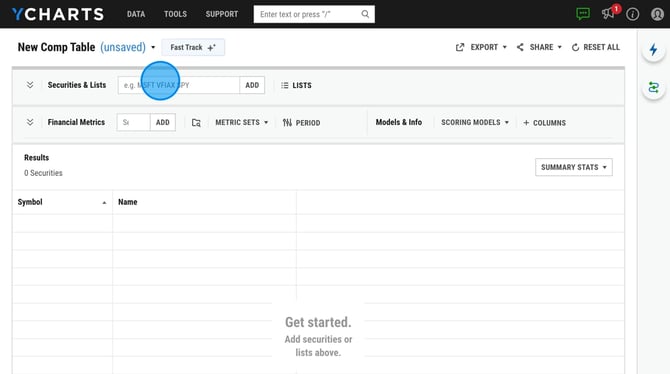
2. To populate the table, enter securities using the security search box, or incorporate lists such as watchlists, portfolio holdings, or screener results through the Lists function.
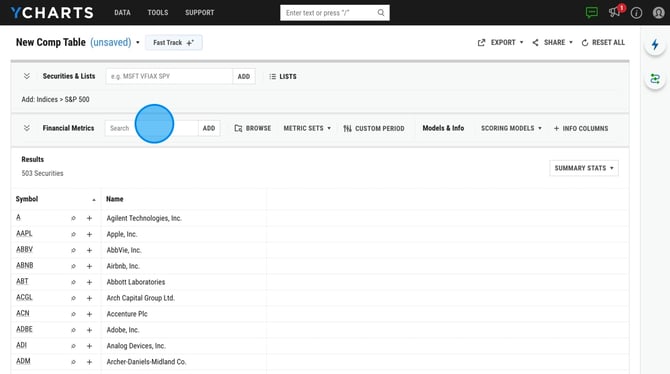
3. Select metrics by entering them in the metric search box, or explore the complete metric library by choosing the Browse option or add in a saved set of metrics by selecting Metric Set.
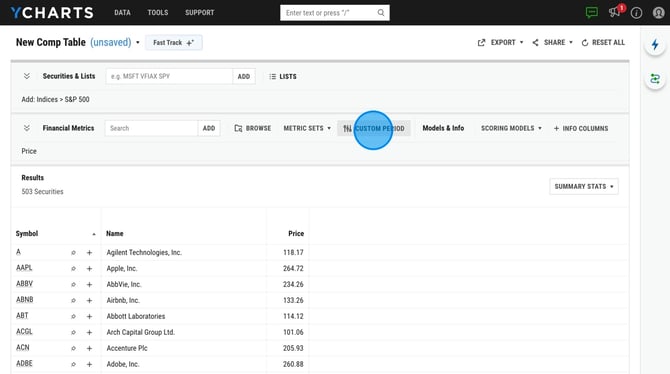
4. To view data for a specified time frame, utilize the Custom Period feature. If a particular metric is unavailable within the Custom Period, use the Timeseries Analysis to access and incorporate historical data.
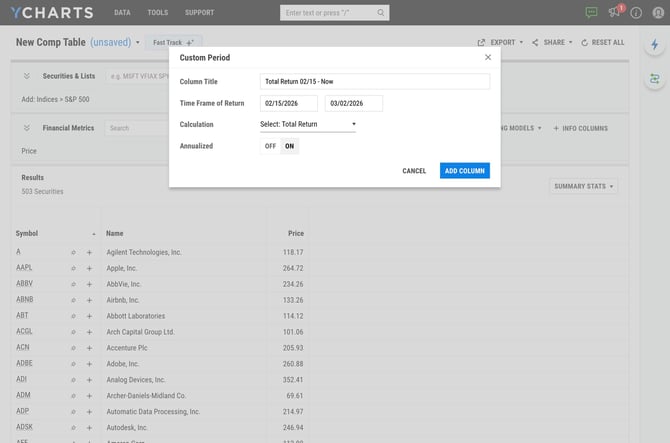
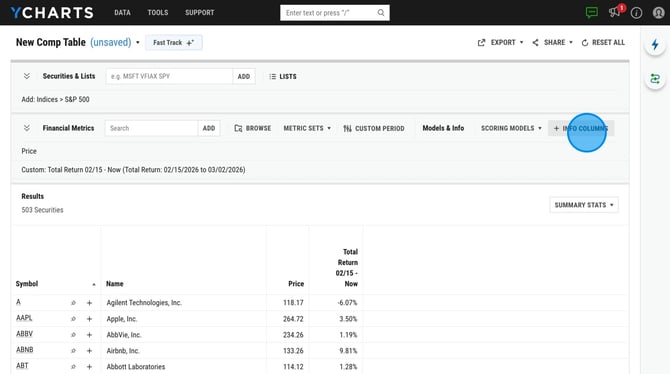
5. To add in qualitative data like Equity Style, Broad Asset Class, etc. use our Info Columns option.
Optional: Add in a Scoring Model to further analyze the securities in your table. Learn more about Scoring Models here.
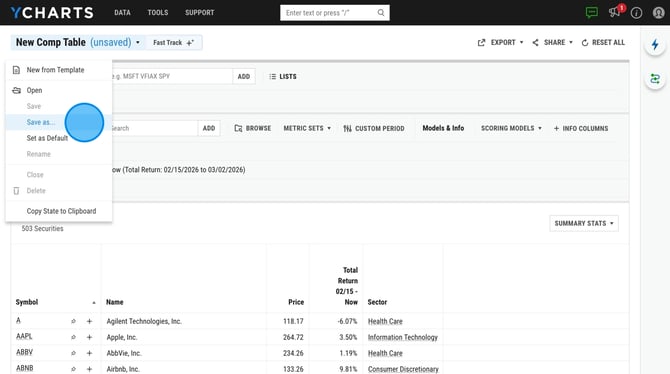
6. Save your table by clicking 'New Comp Table' in the top left corner and selecting Save As from the dropdown menu.
Fast Track
Fast Track uses natural language processing (NLP) to make Comp Table creation faster and more intuitive. Instead of manually picking securities and metrics, just describe what you want to compare in plain language and Fast Track will build it for you.

Here are some example prompts you can try (or use for inspiration):
- "I want to see metrics specific to bond funds."
- "Analyze growth and valuation metrics for Nasdaq stocks."
- "Show me key fundamental stats for the Dow Jones."
- "How has the Nasdaq 100 performed across different time frames?"
- "Which momentum metrics should I look at for the S&P 500?"
Frequently Asked Questions
Can I share a comp table with colleagues?
- Yes, once your comp table has been saved to your account, you can click Share in the upper right corner and then select the share group.
How do I view data as of a specific date in comp tables?
-
Our comp tables tool will automatically retrieve the latest value, and we won't have the capability to view all metrics as of a specific date. However, we offer our Custom Period feature, which is available for a select number of metrics. You can learn how to set up a custom period here.
Can I add a list of securities to a comp table?
-
Yes, you can instantly incorporate any saved list, such as a watchlist, screener, or portfolio holdings, into your comp table without needing to add each one individually. If your list is saved in YCharts, click on the Lists button next to the security search box. You can also paste a list of ticker symbols directly into the security search box and it will add them automatically.
Can I add economic indicators to a comp table?
-
At this time we cannot add economic indicators to a comp table. We recommend comparing multiple indicators using either our Fundamental Charts tool or using our Excel Add-In.