
The Custom Securities tool allows you create proxy securities that can be used for securities that are outside of the YCharts coverage universe, including in YCharts portfolios. To build a custom security you'll just need the historical returns or levels of the security you would like to proxy.
Getting Started
Best Practices
Advanced Settings
Custom Security Classifications
Frequently Asked Questions
Getting Started
How to Create a Custom Security
1. Hover over Tools and select Custom Securities
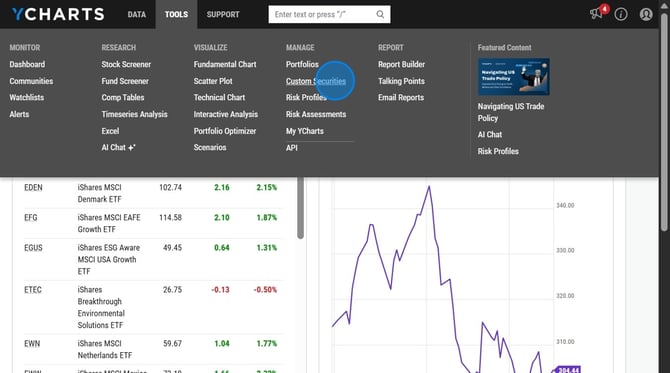
2. Select Create at the top right
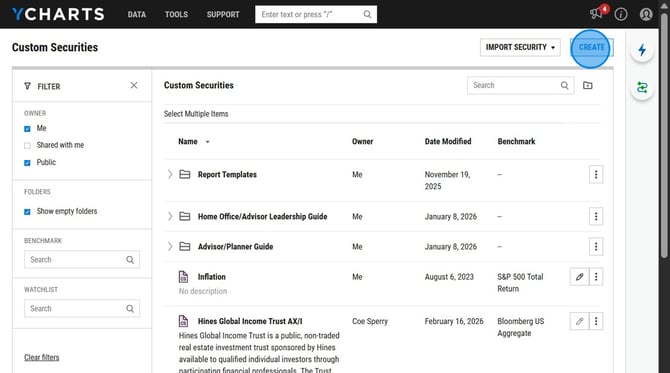
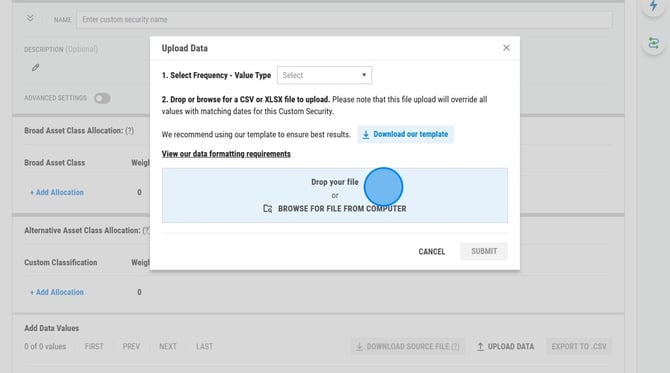
3. Select Upload Data in the Add Data Values section of the Custom Security Editor
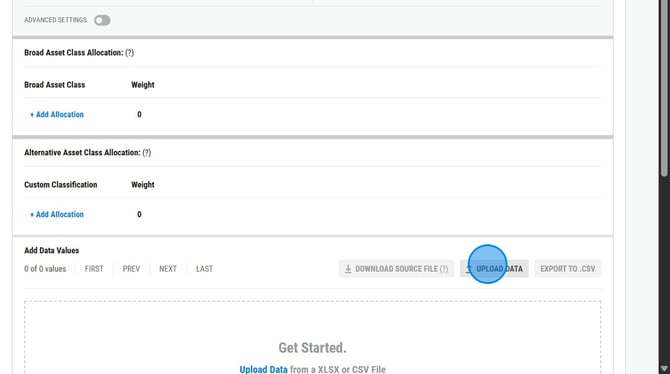
4. Select Download our template
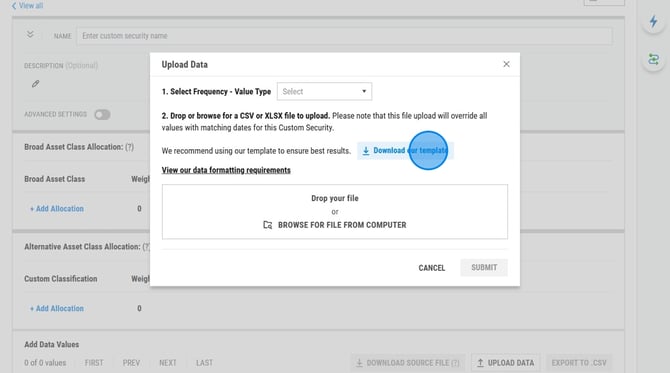
5. Complete the template with the returns or levels and the dates of those returns or levels

6. Save the template
%20-%20Excel.png?width=670&height=379&name=2026-03-16%2018_52_11-upload_template%20(3)%20-%20Excel.png)
7. Return to the Upload Data button and upload the saved file
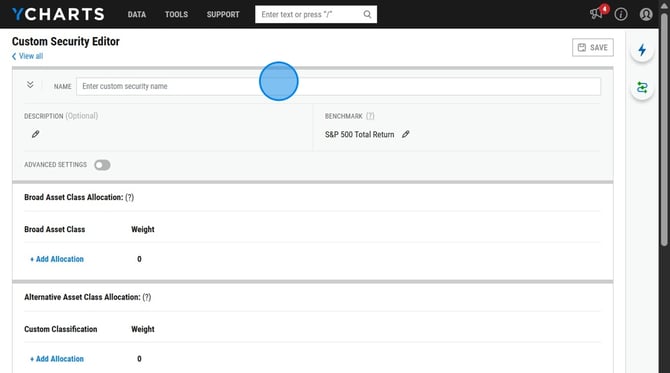
8. Complete the fields at the top of the Custom Security Editor if needed
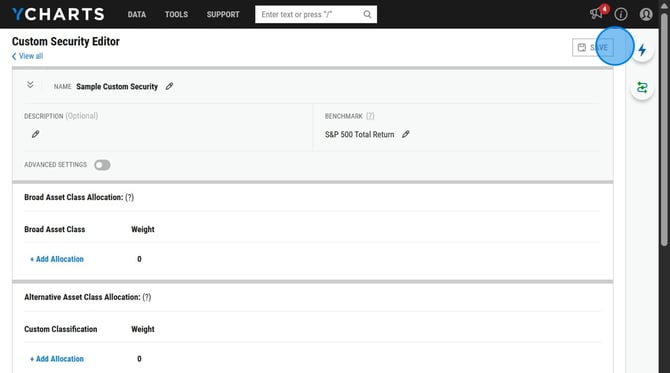
9. Select Save
Best Practices
Ensure that the end and beginning dates of your returns or level data are on the same day. If you end a series on 12/31, the subsequent series must also be on 12/31 and not 1/1.
Monthly Return and Level data must be uploaded as of the last calendar day of each month.
Advanced Settings
- Expense Ratio: The entered Expense Ratio will not affect the Level or Performance calculations of the Custom Security. Instead, populate this field so that if the Custom Security is included in a Portfolio, the data point is included in the weighted average calculations for the Portfolio.
- Yield: The entered Yield will not affect the Level or Performance calculations of the Custom Security. Instead, populate this field so that if the Custom Security is included in a Portfolio, the data point is included in the weighted average calculations for the Portfolio.
- Continuation: allows for the custom security to continue to update past the last date inputted into the excel template.
- Fixed: will update each day with a specified return. Enter the annualized return value, and the Custom Security will update each day with the appropriate return.
- Static: will update each day past the last uploaded performance date, but would not increase or decrease the security level. It is simply an extension of the last uploaded value into the future.
Custom Security Classifications
Custom Security Classification will let you manually classify your custom securities so they can be included in model portfolio allocation and exposure data.
You will be able to specify different data points for your custom security based upon which Broad Asset Class is chosen:
- Cash
- Stock
- Region > Market Cap > Stock Sector > Stock Style
- Bond
- Region > Bond Sector > Maturity > Credit Quality
- Convertible
- Region > Bond Sector > Maturity > Credit Quality
- Preferred
- Other
- Region
You can also choose to specify different data points for your custom security based on Alternative Asset Class Allocation by selecting from the following options:
- Hedge Fund
- Private Equity
- Venture Capital
- Real Asset
- Private Credit
- Securitized Asset Fund
- Liquidity Fund
- Other
All of these fields are optional; you are not required to select any of them. The default setting for all custom securities will be to assume the Broad Asset Class is Other and all other fields will be null.
Frequently Asked Questions
Why are the metrics in my custom security blank?
-
Metrics will not be displayed if the custom security is considered stale. YCharts considers the following time periods stale based on the frequency of Custom Security. Daily > 2 Weeks, Monthly > 7 Weeks, Annual > 55 Weeks.
Can I add a custom security to a portfolio?
-
Absolutely! Either add them by using your chosen name for the security or using the unique YCharts ID generated to a custom, security such as Y:1234.
Can I share a custom security with a colleague?
- Yes, once you have created your custom security you will be able to share with colleagues by heading to the main Custom Security page, selecting the three dots all the way to the custom security, clicking Share, and then selecting the share group.
Can I make changes to a custom security without changing the original?
-
You can duplicate the security and make edits to the duplicate, leaving the original as is. You can do so by navigating to the Custom Security list page, selecting the three dots to the right of the custom security, then selecting Duplicate
Related Articles
How to Update a Custom Security