
The Fill Null function within our Excel Add-In allows you to override an empty or missing data point by specifying exactly what should appear in that cell instead. This is particularly useful when you encounter the error message 'ERR: NO DATA', as it enables you to replace that error with a more polished, client-ready value such as a zero, “N/A,” or a custom label that aligns with your reporting standards.
Getting Started
Frequently Asked Questions
Getting Started
How to Use the Fill Null Function
1. Click on the cell you'd like to add a Fill Null function for.
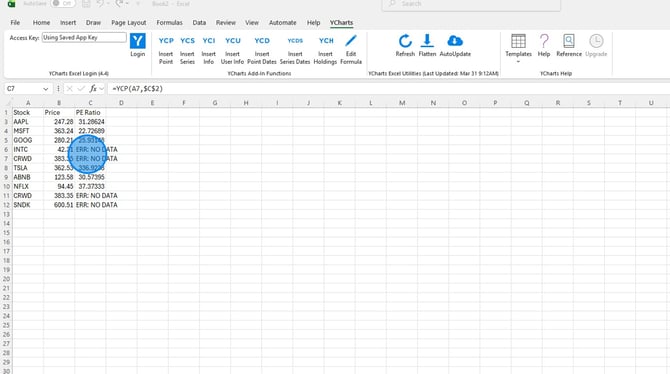
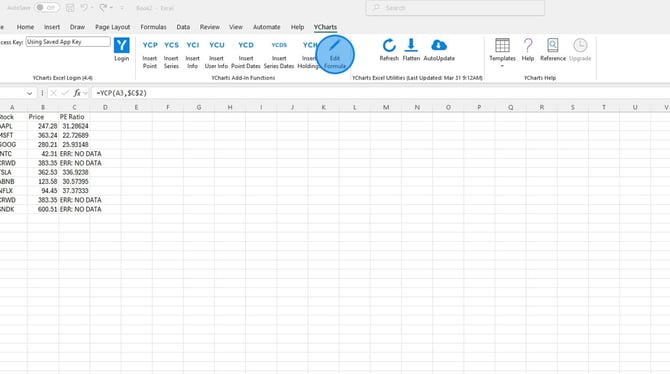
2. Toggle to the YCharts tab in the Excel ribbon and select Edit Formula.
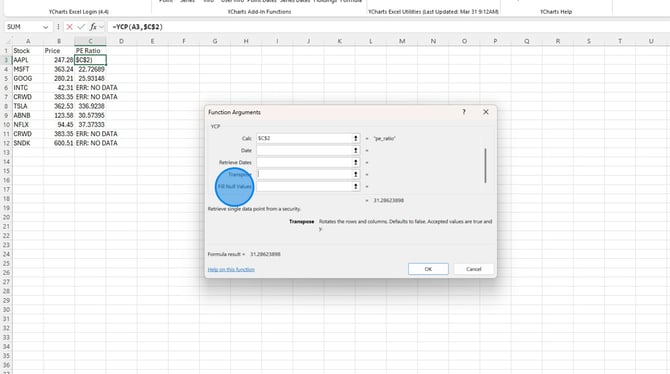
3. Scroll to the find Fill Null Values function box.
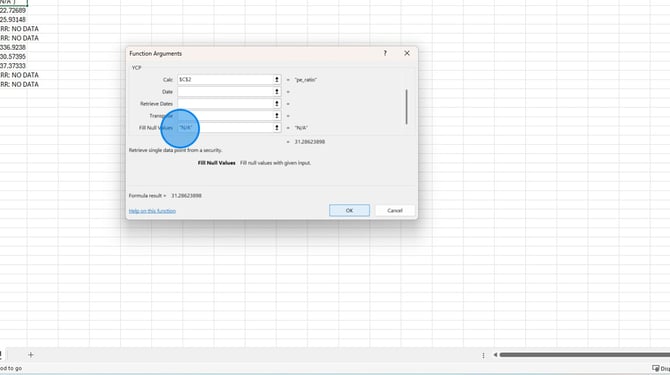
4. In quotation marks, enter the value you want displayed in cells that contain no data. Then click Ok.
5. Optional: Drag and drop the formula so that it applies for all cells in your row or column.
.jpeg?width=670&height=374&name=How%20to%20Replace%20Null%20Values%20Using%20Excel%20Function%20Arguments%20-%20Step%207%20(1).jpeg)
Frequently Asked Questions
I'm still seeing an error message after I updated the formula, what am I doing wrong?
- Check and make sure that you added quotes around the fill null input, without the quotes the error message will not go away.