
Quick Extract is an AI-powered tool on YCharts that makes it easy to recreate portfolios from prospect statements, client accounts, or model strategies. By uploading PDFs, images, or Excel files, you can automatically extract holdings, weights, and cost basis—saving time and accelerating the proposal process.
Getting Started
Frequently Asked Questions
Getting Started
How to Upload Portfolio Data via Quick Extract:
- Open the Portfolios tool under the Tools tab.

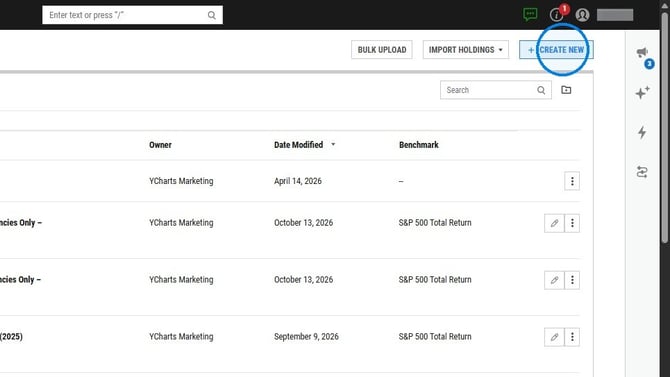
- Select Create New
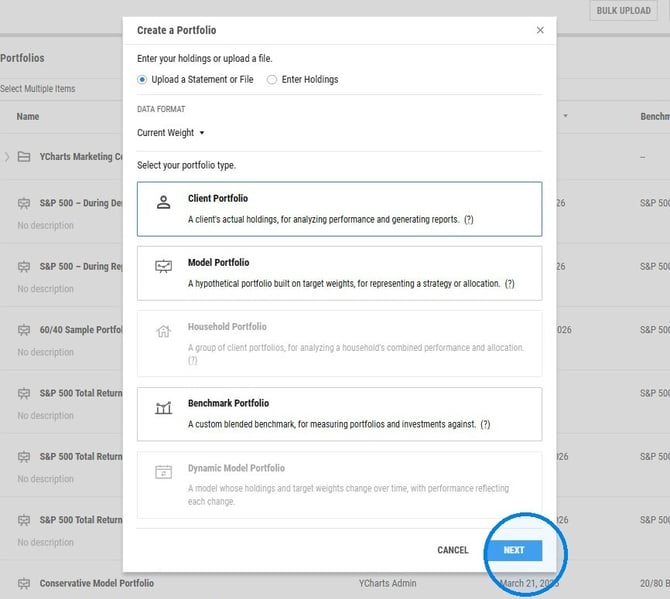
- Select Upload a Statement or File, Data Format, Portfolio Type and Next to continue.
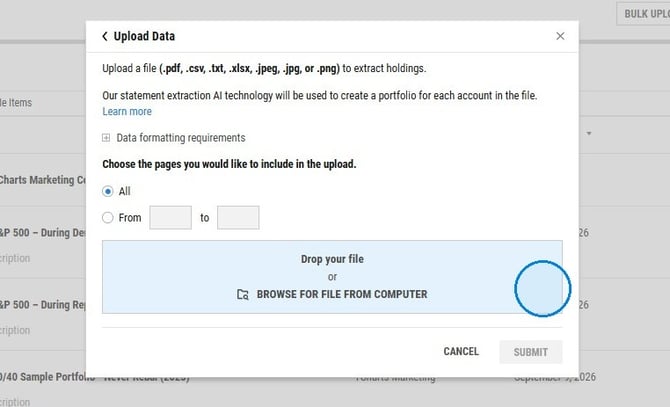
- Drop your file or upload a PDF, image, or Excel file (e.g., brokerage statement or screenshot).
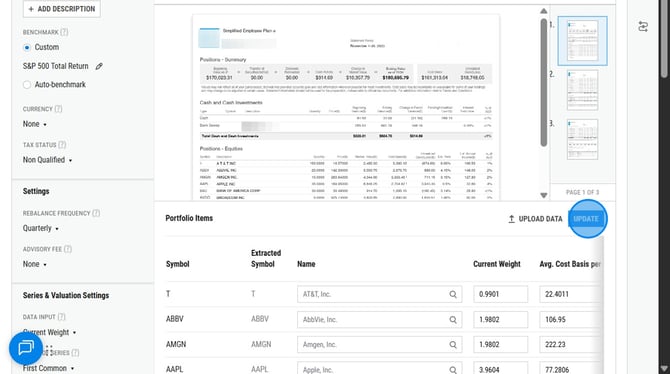
- Once YCharts finishes extracting your holdings, weights, and cost basis using AI you can review and edit the uploaded data as needed. Select Update to save the holdings.
- Once the Portfolio is created you will be able to review key stats, allocations, and details will be generated instantly.
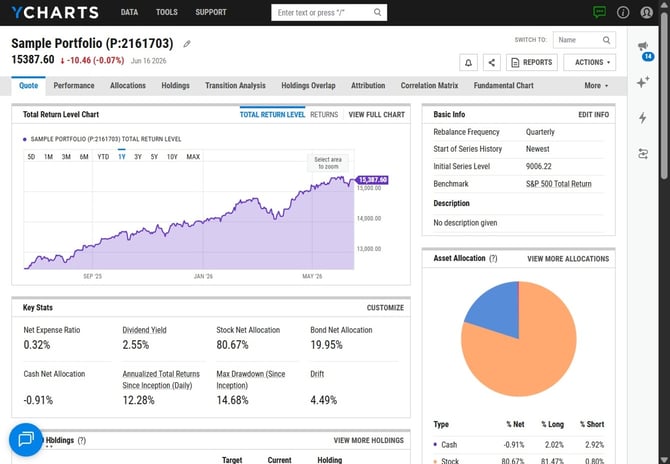
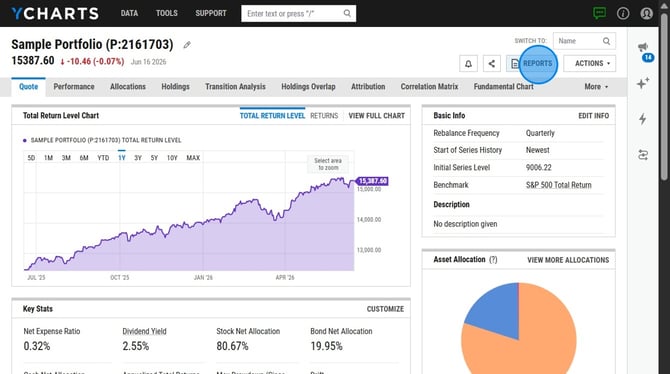
- To quickly create a report for your portfolio, select ‘Reports’ and choose the report you wish to use.
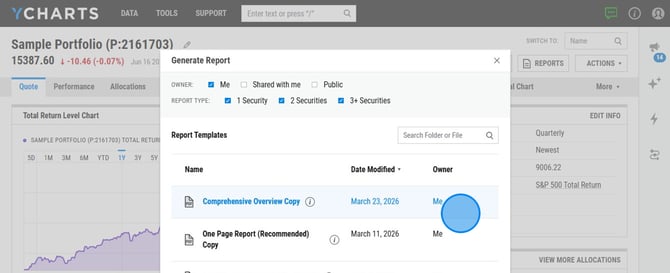
- Select to generate the report or proposal.
Frequently Asked Questions
What is the underlying model used to power Quick Extract?
-
Quick Extract runs using Open AI GPT-5.4
Can I upload multiple files for one portfolio?
- No, at this time you can only upload one file per portfolio.
How will I be notified when the extraction in complete?
- A task will appear within the To Do tab of Notifications.
Is client statement data stored after the extraction?
- No, client data is not stored after the extraction.
Is there a limit on the number of uploads?
- No, we do not have a limit on the amount of statements that can be uploaded.
What file types are supported?
- PDFs, PNGs, JPGs, CSVs, and XLSX files.