
The Stress Test tab lets you quickly visualize how a security performed during major market events, with multiple charts displayed side by side for easy comparison across different time periods
Creating Stress Tests
Customizing Stress Test Views
Managing Stress Tests
Frequently Asked Questions
How to Create a Stress Test
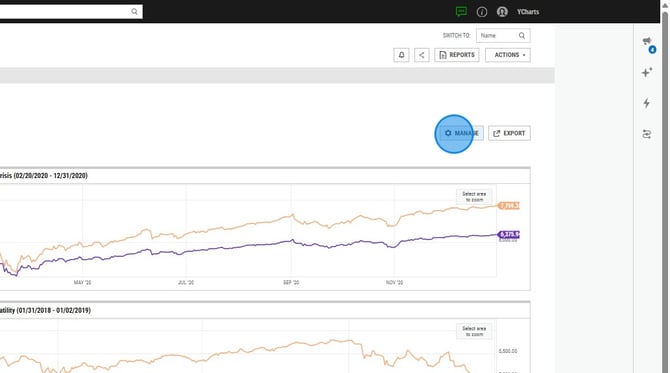
1. On the Stress Test tab, select Manage in the upper right corner.
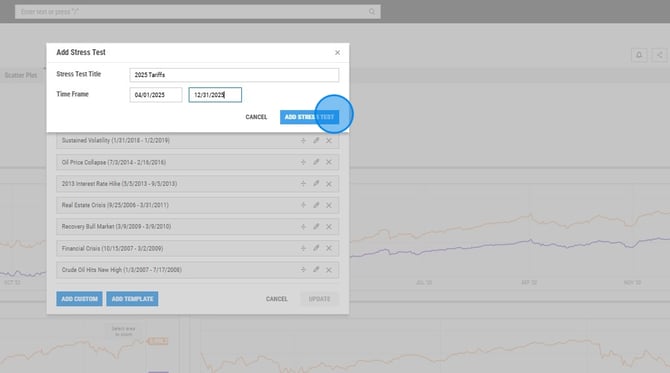
2. Add a Name and Time Frame for the stress test.
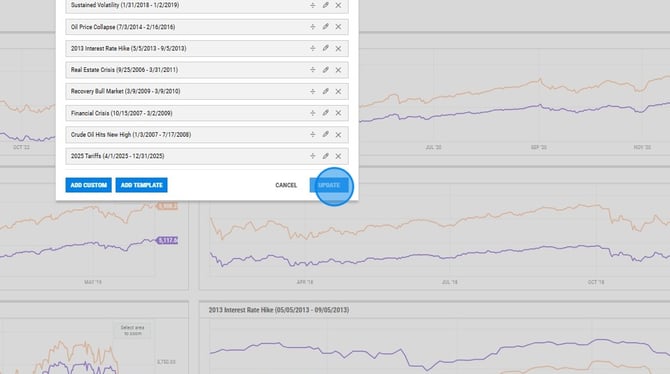
3. Select Update.
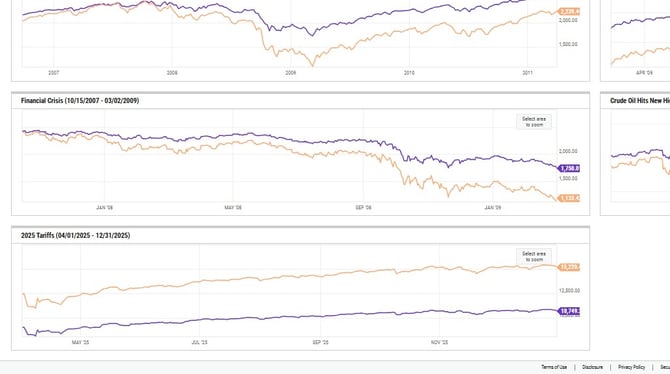
4. The stress test will now be added to the bottom of the page.
Customizing the Stress Test View
1. Compare how your security performed vs another using the security search box. You can also choose to add or remove the benchmark from your comparison.
.jpeg?width=670&height=374&name=How%20to%20Configure%20and%20Apply%20Custom%20Stress%20Test%20Templates%20-%20Step%2014%20(2).jpeg)
2. Toggle between three chart format options: Original, Normalized, and Growth of 10k.
.jpeg?width=670&height=374&name=How%20to%20Configure%20and%20Apply%20Custom%20Stress%20Test%20Templates%20-%20Step%2014%20(1).jpeg)
Managing Stress Tests
1. On the Stress Test tab, select Manage in the upper right corner.
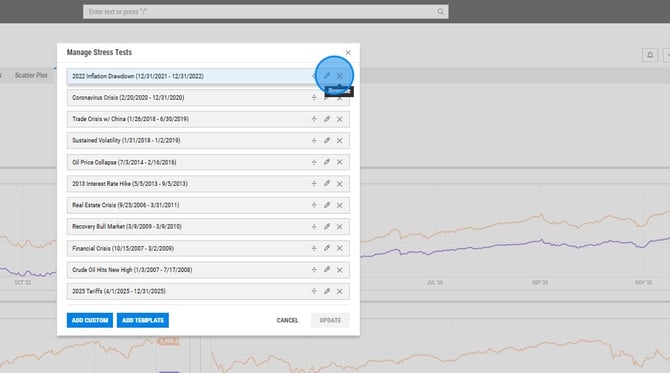
2. Select X to remove the stress test from your view.
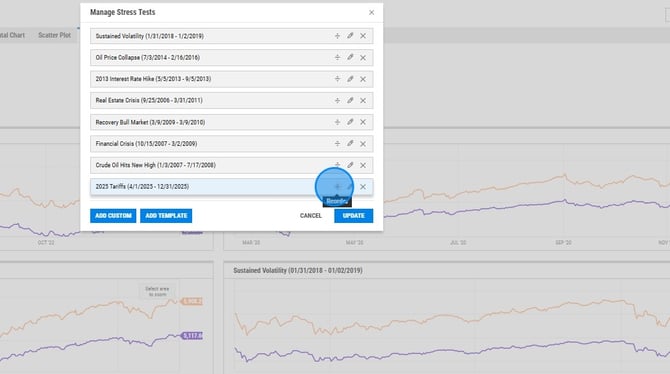
3. Select the arrows to rearrange the order of the stress tests.
Frequently Asked Questions
Why is my stress test not appearing?
- Double check and ensure that your security has performance data going back to the start date of the stress test - this is required for the chart to load.
Can I add stress tests to a PDF report?
- Yes, there is a stress test module that can be added to any PDF report via our Report Builder tool.
Can I share stress tests with colleagues?
- No, at this time stress tests cannot be shared with colleagues.