Want to recreate an existing PDF report, but change whether the benchmark is included? In just a few quick steps, you can generate a new version of the report either with or without the benchmark.
How to Add or Remove a Benchmark in Reports:
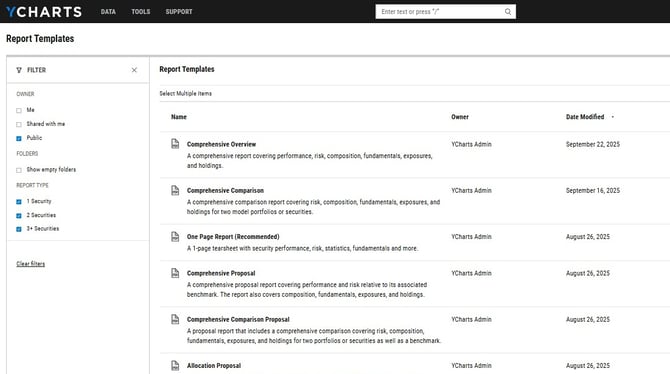
1. Head to the Report Builder page.
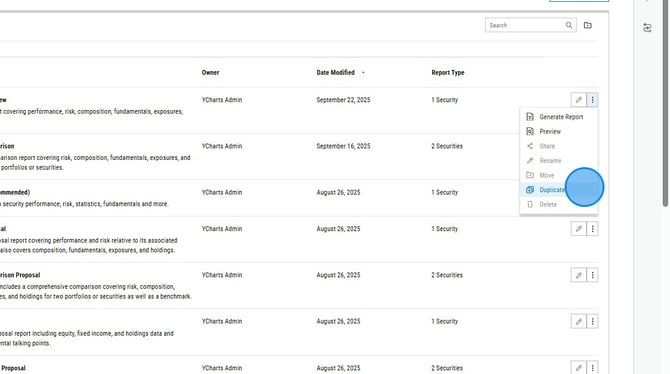
2. Select the three dots all the way to the right of the report you'd like to copy and then select "Duplicate" from the dropdown menu.
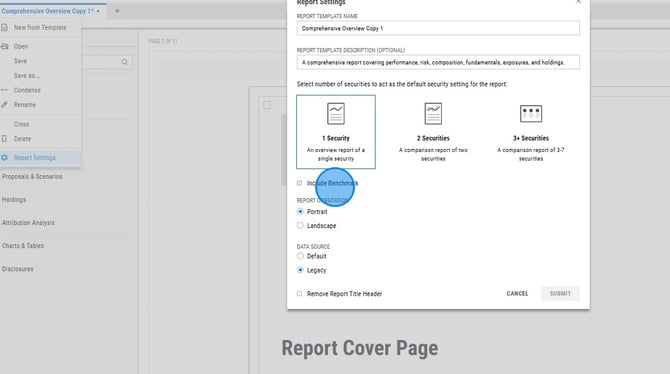
3. Click on the report name in the upper left corner, then select "Report Settings".
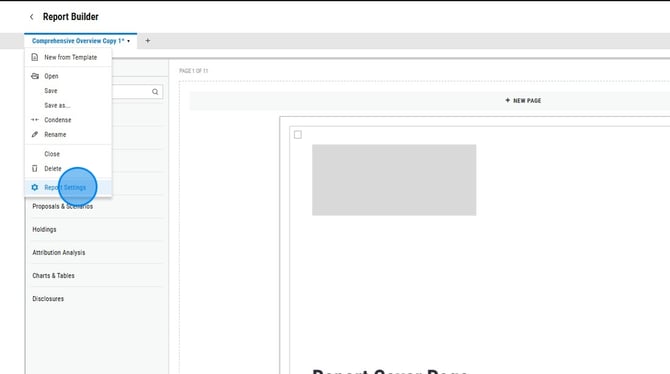
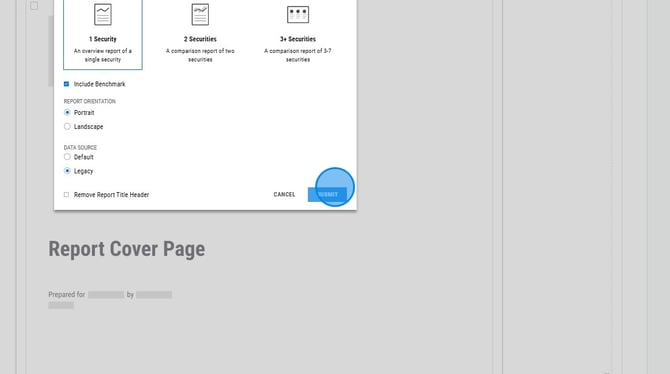
4. Check or uncheck the "Include Benchmark" option, then select "Submit".
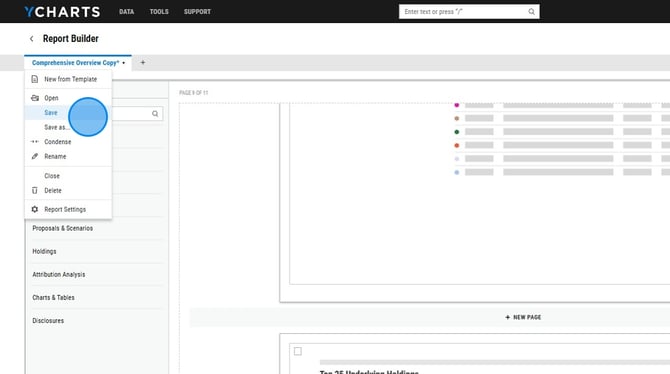
5. To save, click the report name in the upper left corner then select Save.