
The YCharts Excel Add-In is designed to simplify how you manage your data by creating a direct, dynamic link between your models and the YCharts platform. Instead of hunting for data on the web and manually inputting it, you can pull information directly into your spreadsheets to build custom tables and charts instantly. We’ve prioritized intuitive formulas to minimize the frustration of error messages, ensuring your models stay stable and reliable.
Getting Started: Excel Templates
Getting Started: Exporting to the Add-In
Formatting Securities in Excel
Frequently Asked Questions
Getting Started with the Excel Add-In
How to Download and Edit Excel Templates:
YCharts offers more than 30 Excel templates, including options for portfolio analytics, economic data, individual securities or funds, and charts and tables drawn from our most popular marketing slide decks. Each template can be quickly downloaded and customized to align with your firm’s specific needs.
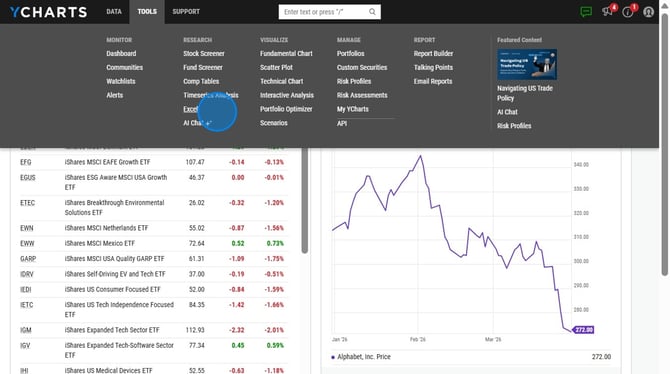
1. Click on Excel in the Tools dropdown menu and then toggle over to Templates.
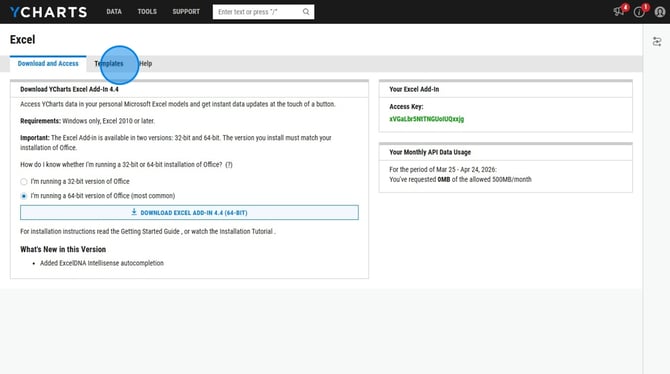
2. Toggle over to the Templates tab on the Excel page.
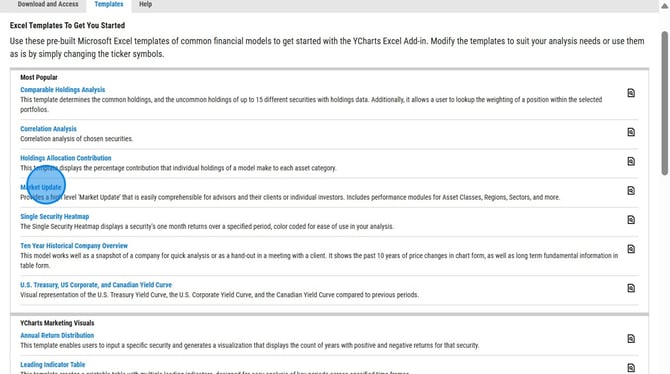
3. Download one of our pre-built templates, which include options focused on portfolio analytics, economic data, individual securities or funds, as well as charts and tables sourced from our most popular marketing slide decks.
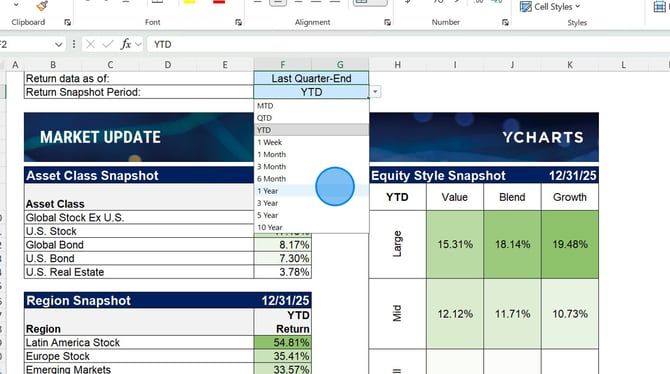
4. Make any edits to the template, including the set date, securities included,
How to Export Data to the Excel Add-In:
In addition to using templates, you can create custom tables in Comp Tables or Timeseries Analysis and export them to the Excel Add-In, where they will continue to update dynamically as underlying data changes.
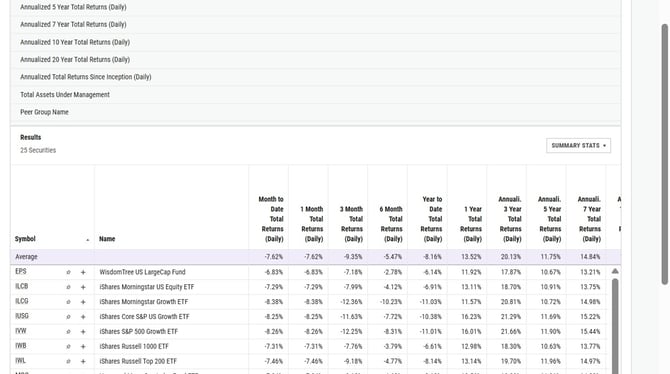
1. Create the table by adding in any securities and metrics you wish to have exported to the Add-In.
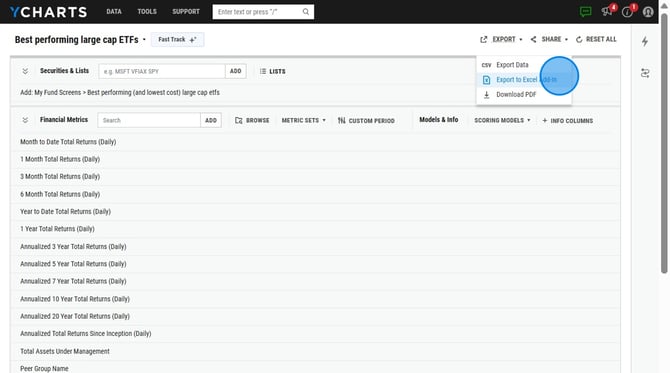
2. In the upper right corner of the page, select Export --> Export to Excel Add-In
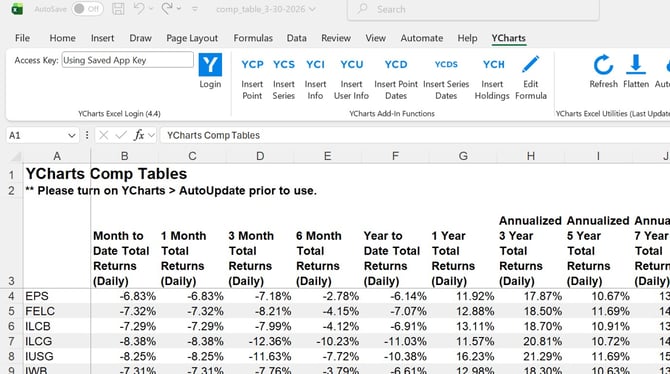
3. Once downloaded, you can open the Excel template created. When data updates on the website, it'll automatically flow through to your spreadsheet.
Formatting Securities in Excel
Most securities can be pulled into the Excel add in using their ticker alone (such as SPY or MSFT) but there are special requirements for certain securities. They are listed below:
- US mutual funds - will need an M: prefix (M:DODGX)
- Canadian ETFs - will need a .TO suffix (XIU.TO)
- Canadian mutual funds - will need a M: prefix and a .TO suffix (M:FID631.TO)
- Indices - will need a ^ prefix (^SPXTR)
- Economic indicators - will need a I: prefix (I:10YTR)
- SMAs - will need a S: prefix (S:0P0001NKBP)
Frequently Asked Questions
Is all data on the website available in the Excel Add-In?
- Most data available on the YCharts platform can be accessed through the Excel Add-In, with the primary exceptions being bond and alternatives data. We are actively working to extend Excel Add-In coverage to these asset classes.
Can I share my spreadsheet with colleagues?
- If your colleague also has an active YCharts subscription and has downloaded the add-in, they will be able to access any spreadsheets you share with them.
Why am I seeing an error message in my spreadsheet?
- An error message can mean multiple different things. Check out our article here to see how to troubleshoot for every type of error.
Is there a full list of metric codes and formulas I can access?
- Yes, we will have a full spreadsheet of metrics and example formulas called "Complete Reference of Metric Codes" that you can access here.