
Set custom criteria for performance, risk, and valuation metrics, plus fund-specific stats like manager tenure, expense ratios and fund flows. The YCharts Fund Screener also lets you set limits for exposures to geographies, asset classes, and even individual securities to ensure the best fit for investors.
Getting Started
Fast Track
Frequently Asked Questions
Getting Started
How to Build a Fund Screen
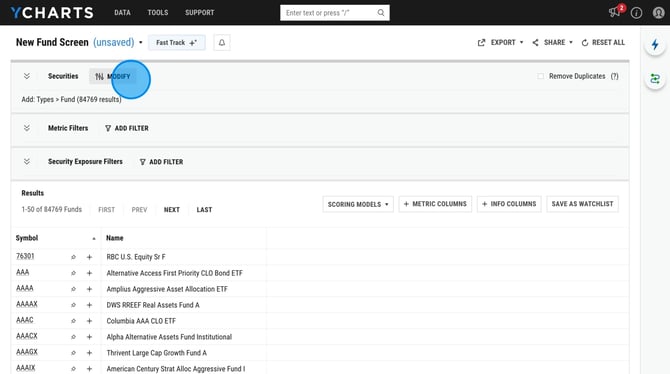
1. Click Modify to narrow down your stock universe. You can narrow down by security type, peer group, fund family, etc.
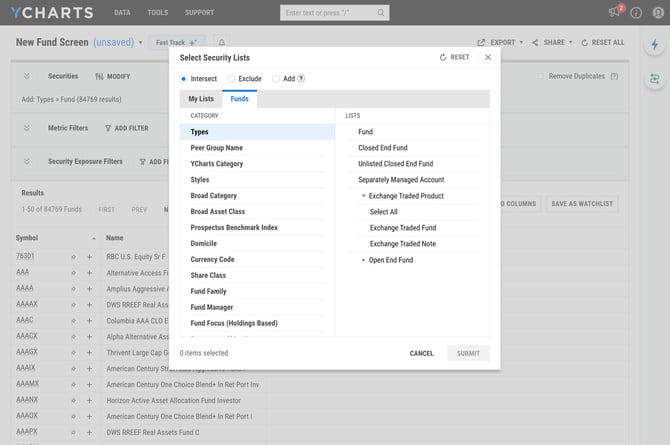
Choose between Add, Exclude, or Intersect your filters. Learn more about these filter types here.
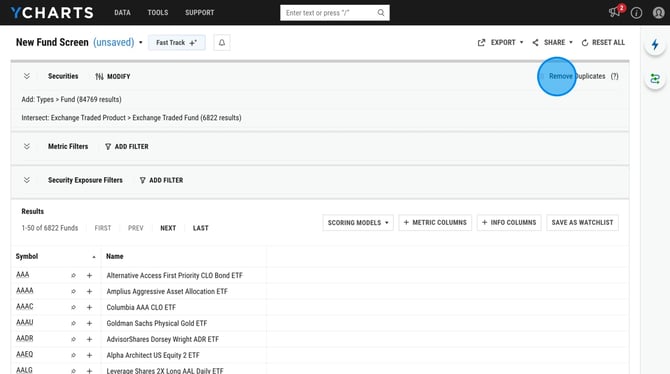
2. Click Remove Duplicates in the upper right corner to only show one share class per fund. The share class with the highest AUM will appear in the results.
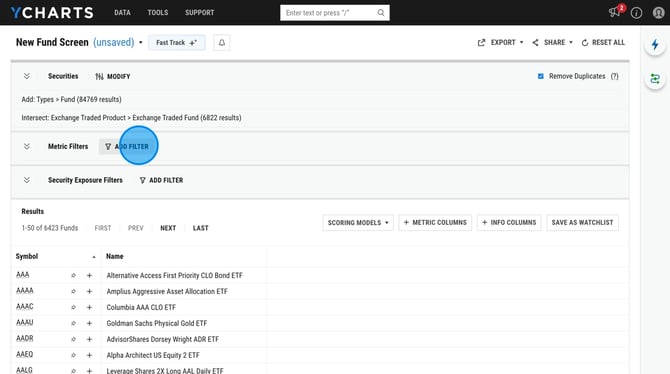
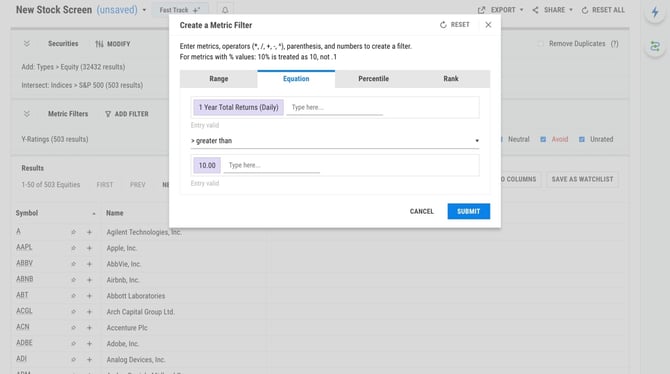
3. Select Add Filter to apply any quantitative metrics. You can choose between four different filter options, Range, Equation, Percentile, or Rank.
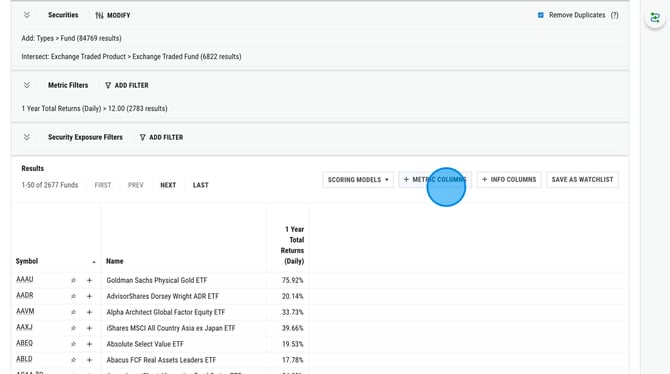
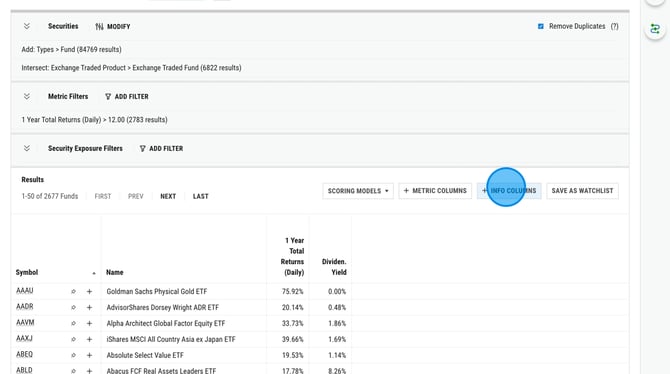
4. Add in any Metric Columns or Info Columns. These will not narrow down your search results, instead they will populate data for the screener results.
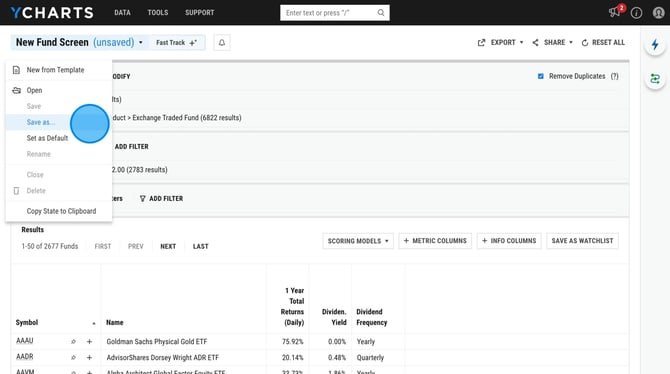
5. To save your screener, click New Fund Screen in the upper left corner and select Save As from the dropdown menu
Fast Track
Fast Track uses natural language processing (NLP) to make screener creation faster and more intuitive. Instead of adding filters manually, just describe what you want to screen for in plain language and Fast Track will build it out for you.
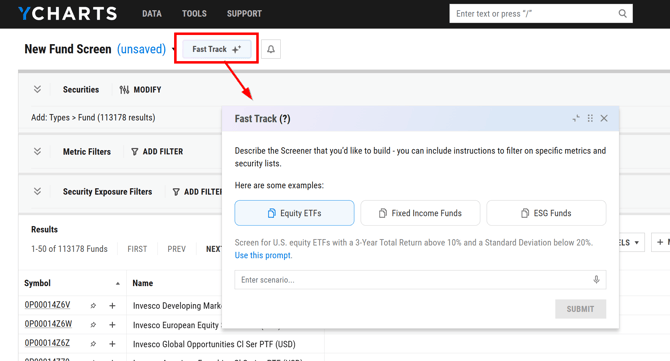
Here are some example prompts you can try (or use for inspiration):
- "Screen for mid-cap growth stocks with Revenue Growth above 15%, Earnings Growth above 15%, and a Forward P/E under 25"
- "Find high-quality stocks with a Return on Invested Capital above 12%, Debt-to-Equity below 0.5, and positive Free Cash Flow."
- "Show momentum stocks with a 6-Month Price Return above 20% and trading above their 200-Day Moving Average"
- "Screen for U.S. large-cap ETFs with a 5-Year Total Return above 12% and an Expense Ratio under 0.10%"
- "Screen for floating rate funds with a 30-Day SEC Yield above 5% and an Effective Duration under 1 year"
Frequently Asked Questions
Can I share this screener with a colleague?
- Yes, once you save your screener you can select Share in the upper right corner, then select the share group.
Can I add a specific security to a screener?
-
You can import a list of holdings from a saved watchlist, portfolio, comparison table, etc., into a screener; however, adding individual securities one by one is not possible. Should you identify a security for comparison with your screener results, we recommend saving your screener and heading to our Comp Tables tool, where you'll be able to add these results using the Lists button. This will enable you to incorporate additional securities and metrics for comparison.
How do I screen for historical data?
-
We are not able to screen for historical data, we will only be able to show the most recent 'as of' data.