
Household portfolios enable you to consolidate multiple portfolios into a single view, providing aggregated insight into performance, holdings, allocation, risk, and other key data for an entire client.
Getting Started
Importing from Integrations
Portfolio Settings
Frequently Asked Questions
Getting Started
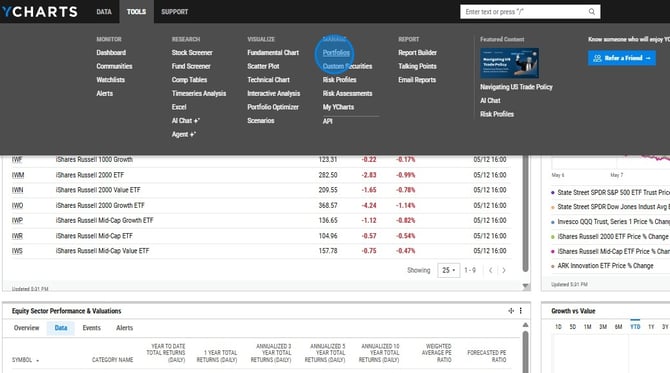
1. Hover over Tools and select Portfolios.
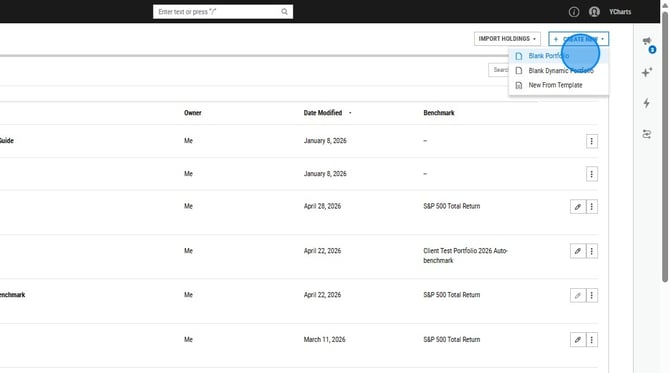
2. Select Create New at the top right and then choose Blank Portfolio.
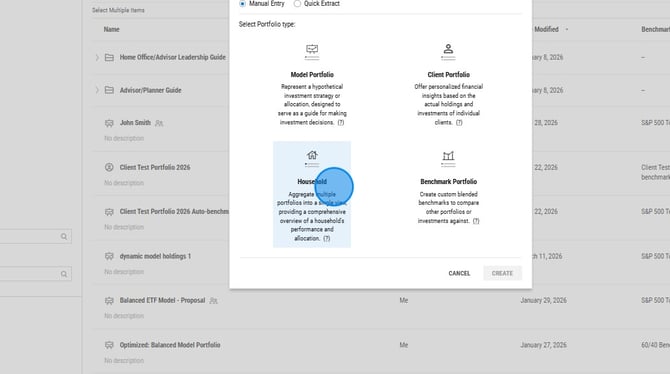
3. Select the Household portfolio type, then select Create.
4. Add a name for the household portfolio.
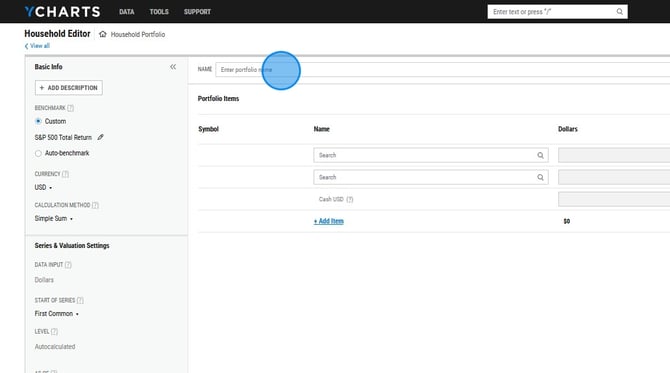
5. Fill out the portfolio settings on the left hand side of the page. Learn more about each of those settings here.
.jpeg?width=670&height=374&name=How%20to%20Create%20and%20Rename%20a%20Household%20Portfolio%20-%20Step%203%20(1).jpeg)
6. Search for your portfolios by name or ticker symbol. Note: only portfolios can be added as holdings, you cannot add individual securities like funds, stocks, bonds, etc. to a household portfolio.
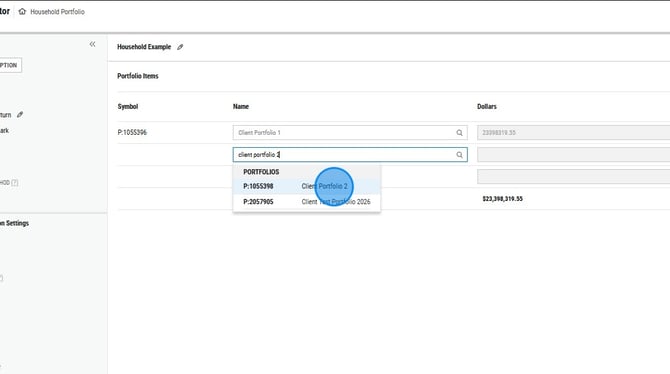
7. Once all portfolios have been added, select Update.
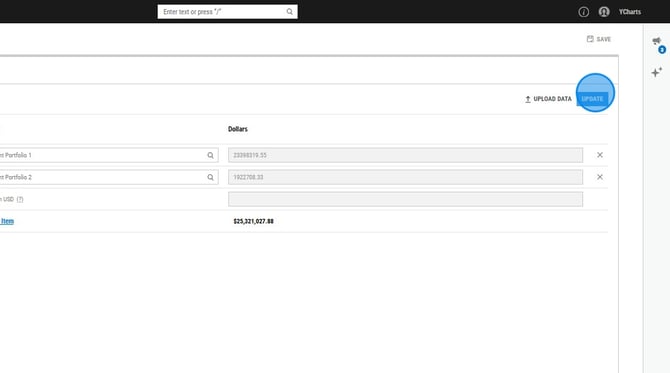
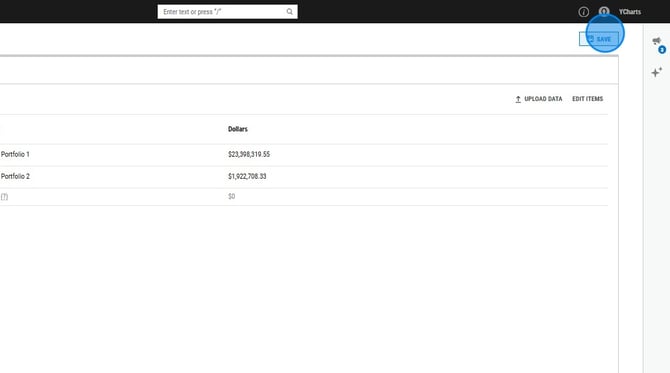
8. Select Save. Your household portfolio will now begin to calculate.
Importing a Household from an Integration
Household portfolios can also be imported via one of our many integrations. This will create both the aggregated household portfolio as well as a portfolio for each account under a specific client. Once you have activated your integration, you can follow the steps below to pull in household portfolios.
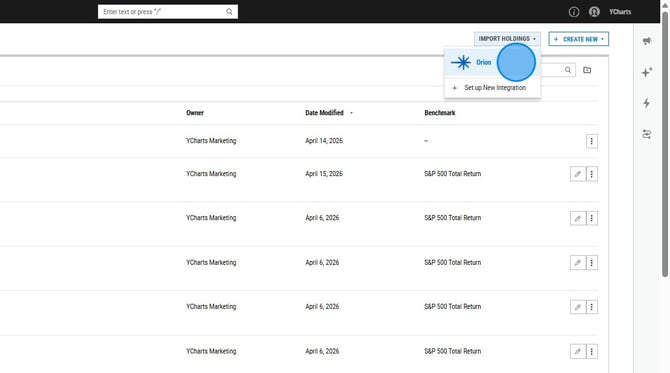
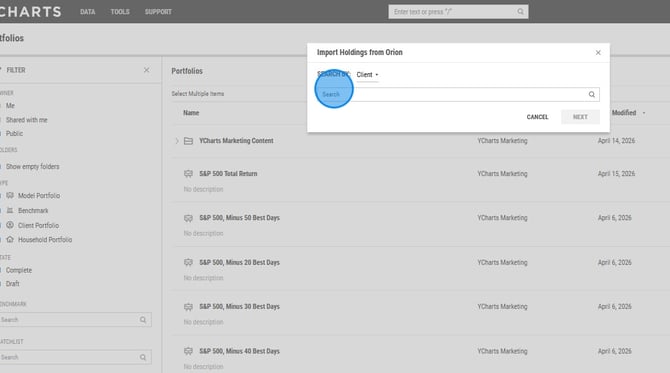
1. In Portfolios, select Import Holdings, then select the integration.
2. Search for your clients account, then select Next.
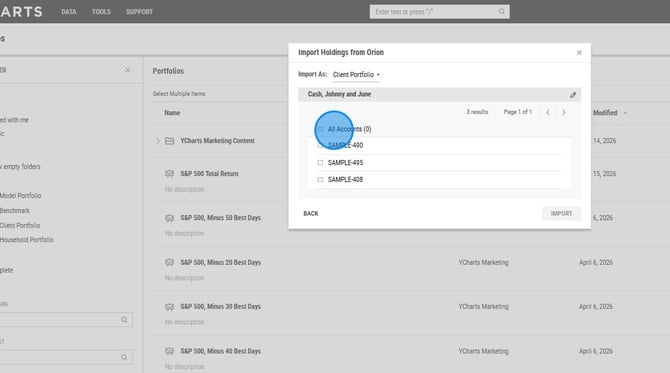
3. Select all the accounts you want imported into the household.
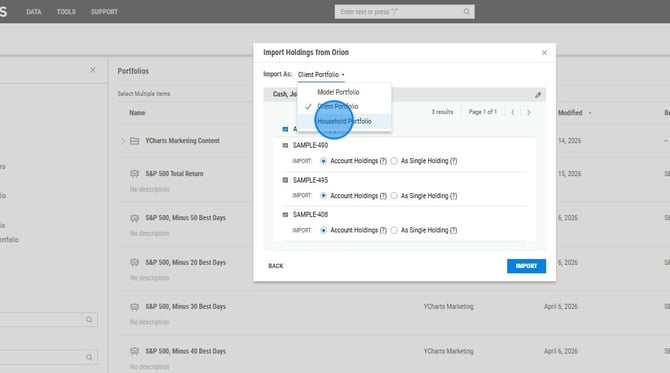
4. Under Import As, select Household Portfolio.
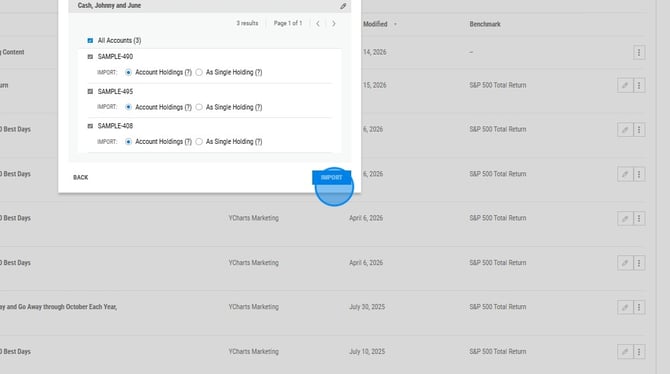
5. Click Import. This will now create the household portfolio as well as a client portfolio for each underlying portfolio.
Portfolio Settings
- Benchmark: The security that is used to calculate a variety of risk metrics and compare performance against the model portfolio that you are creating. You can choose any index or model portfolio as your benchmark. You can also have our system create an auto-benchmark for you. Learn more about that feature here.
- Currency: Select a base currency to express your portfolio's performance in a single currency. When a base currency is set, returns for holdings traded in a different currency are adjusted to reflect exchange rate movements between the holding's trading currency and the base currency you choose. When set to None, no currency conversion is applied. Each holding's return is reported in its native trading currency, which is the default behavior. Learn more about this setting here.
- Example: If you select USD as your base currency and your portfolio holds a security traded in EUR, the reported return will include both the security's local return and the effect of EUR/USD exchange rate changes over the period.
- Calculation Method:
-
- Simple Sum: Directly adds together the values of the underlying portfolios. This provides a more accurate representation of total value and performance, especially for portfolios made up of other portfolios.
- Simple Sum: Directly adds together the values of the underlying portfolios. This provides a more accurate representation of total value and performance, especially for portfolios made up of other portfolios.
-
- Target Weight: calculates the portfolio based on the weights you assign to each holding or underlying portfolio. This approach is useful for modeling allocations or working with sleeves, but may produce results that differ from the actual combined value of the underlying components.
- Start of Series: The start of series determines the start date of the model portfolio you're creating.
- Earliest: Will find the first date that all holdings have a price or level, and allocate your portfolio based on the weights you input.
- First Common: Will find the first date that all holdings have a price or level, and allocate your portfolio based on the weights you input.
- Custom: Allows you to select a custom start date of your portfolio. As long as one of your holdings is active at the time of the portfolio start date, the portfolio will use the same logic as explained above in the earliest section.
Frequently Asked Questions
Can I add stocks, funds, or ETFs to a household portfolio?
- No, only portfolios can be added as holdings to a household portfolio. We do not allow for individual securities to be added.
Can I add a custom fee to my household portfolio?
- No, household portfolios will automatically calculate a fee based on the advisory fees of the underlying portfolios.