
With Dynamic Portfolios, you’re able to present and discuss the impact of your historical asset allocations and holdings adjustments with clients and prospects.
Getting Started
Frequently Asked Questions
Getting Started
How to Create a Dynamic Portfolio
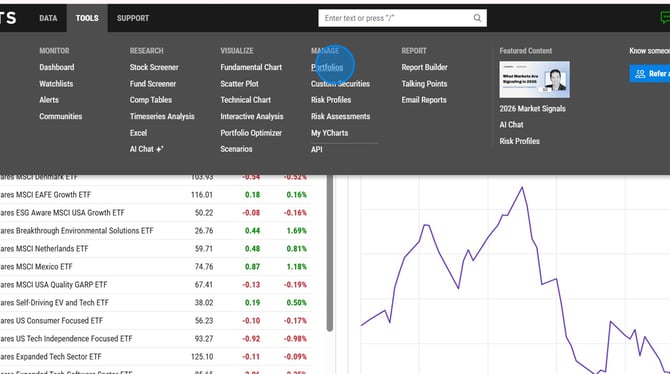
1. Hover over Tools and select Portfolios.
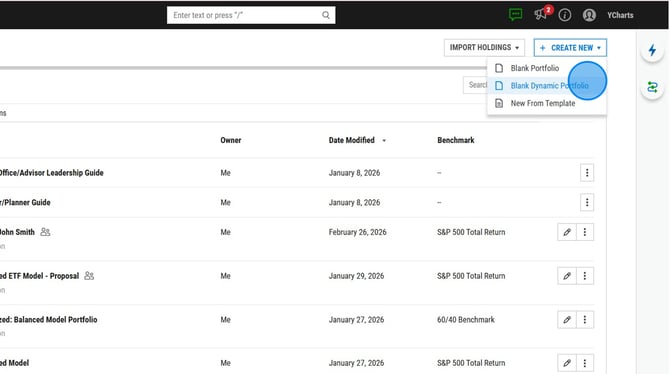
2. Select Create New at the top right and then select Blank Dynamic Portfolio.
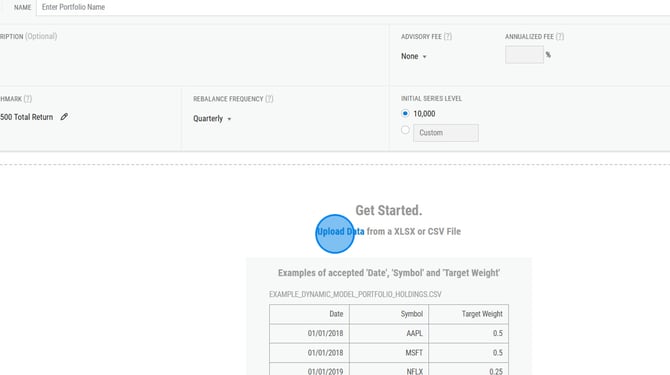
3. Select the Upload Data link near the middle of the page.
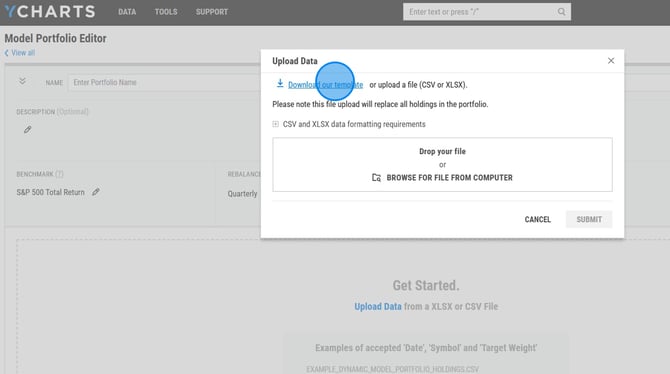
4. Select Download our template on the popup menu.
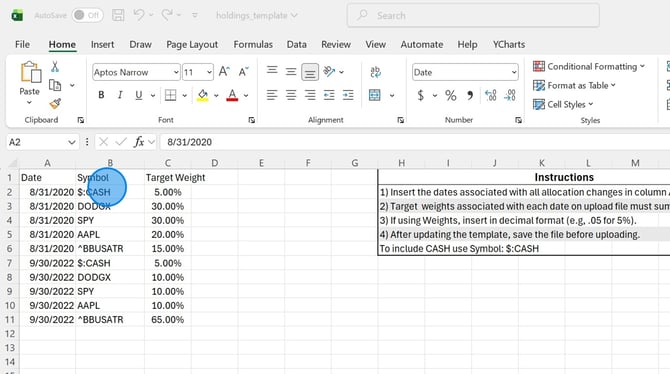
5. Complete the template with the dates of each set of holdings, the tickers, and weights. Ensure that all holdings are entered on each date and the holdings on each date add up to 100%. Save the template.
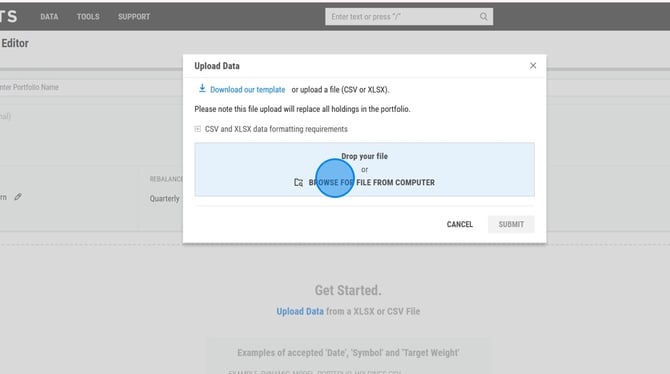
6. Return to the Upload Data menu and upload the saved template.
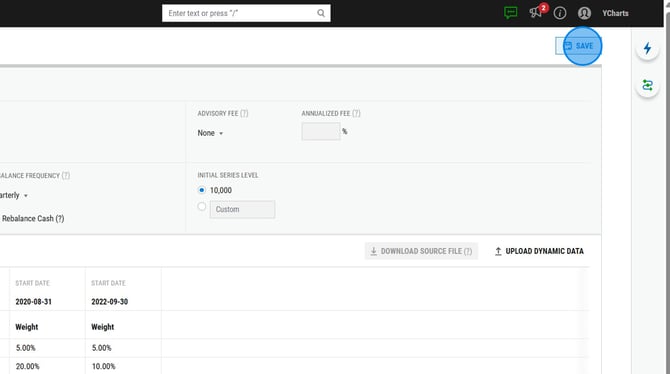
7. Complete the fields at the top of the Model Portfolio Editor page and then select Save.
Frequently Asked Questions
Can I upload a dynamic model using shares or dollar values?
- Yes, you can use this template here to upload as shares or dollars. Note: the YCharts Excel Add-In is required in order to successfully upload this template.
I updated the holdings in my portfolio and now all the previous holdings are gone, what happened?
- This occurs usually when you overwrote the data in your excel file. When adding new holdings data to the upload template, you do not want to delete any previous holdings data, you just add on to the file.
How can I tell if my portfolio is a dynamic portfolio?
- The quickest way to tell is by heading to the Holdings tab of your portfolio. If you see historical holdings data, your portfolio is dynamic.
Can I use an auto-benchmark within dynamic portfolios?
- No, currently the auto-benchmark feature is only available for static models.
Related Articles
How to Edit a Dynamic Portfolio