
If you've downloaded the Excel Add-In, but it's not appearing when you open Excel, there could be a few reasons for this. We recommend troubleshooting in the order below.
Manually Opening the Add-In
Confirming Add-In is Enabled
Disabling Other Add-Ins
Uninstalling and Reinstalling
Further Troubleshooting
Manually Opening the Add-In
If you've successfully downloaded the YCharts Add-In, but when you go to open Excel, it's not appearing, you will want to try manually opening it. If you find that you have to manually open each time, scroll below to confirm that both Add-Ins are enabled.
1. Open File Explorer and then open your C Drive.
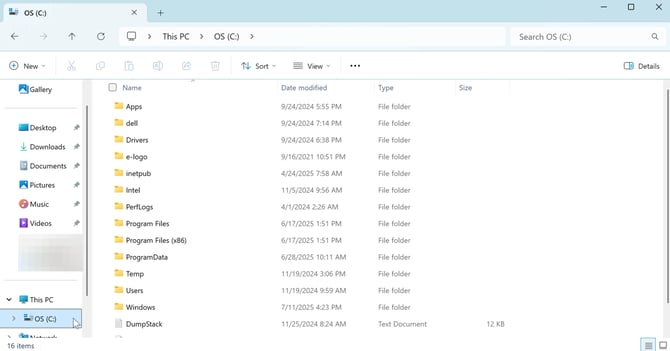
2. Select Program Files (64 bit) or Program Files (x86) (32 bit).
.jpeg?width=670&height=353&name=How%20to%20Manually%20Open%20the%20Excel%20Add-In%20-%20Step%201%20(1).jpeg)
3. Double click YChartsExcel.
.jpeg?width=670&height=353&name=How%20to%20Manually%20Open%20the%20Excel%20Add-In%20-%20Step%202%20(1).jpeg)
4. Double-click YChartsExcelAddin, this should open an excel file.
.jpeg?width=670&height=353&name=How%20to%20Manually%20Open%20the%20Excel%20Add-In%20-%20Step%203%20(1).jpeg)
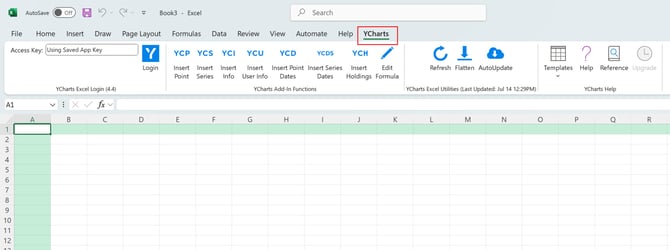
5. You should now see YCharts in the Excel ribbon.
Confirming Add-In is Enabled
If you are having to manually open the Excel Add-In each time, as it doesn't stay in the Excel Ribbon, you might not have both the YCharts Excel Add-In and YCharts COM Add-In enabled.
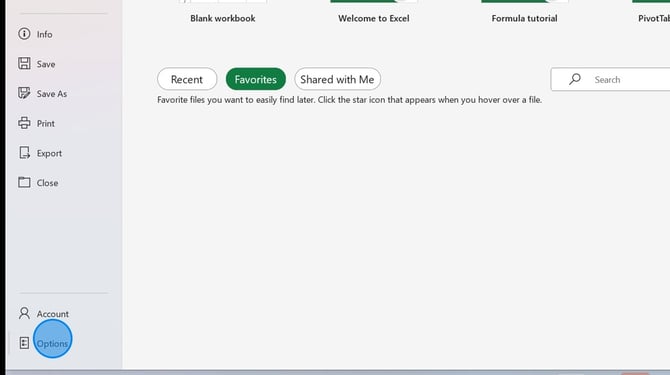
1. In Excel, select File, then select Options.
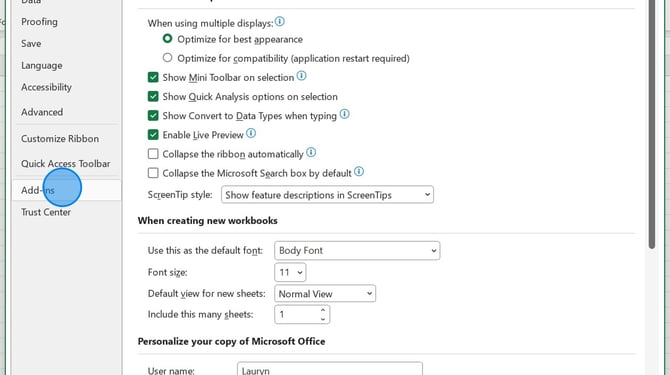
2. Click Add-Ins.
3. Confirm that both the YCharts Excel Add-In and YCharts COM Add-In are listed under Active Application Add-Ins.
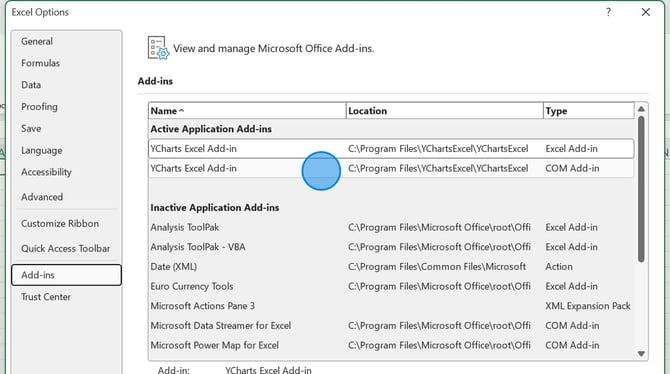
4. If one or both are not listed, under Manage select either the COM Add-Ins or Excel Add-Ins, then select Go.
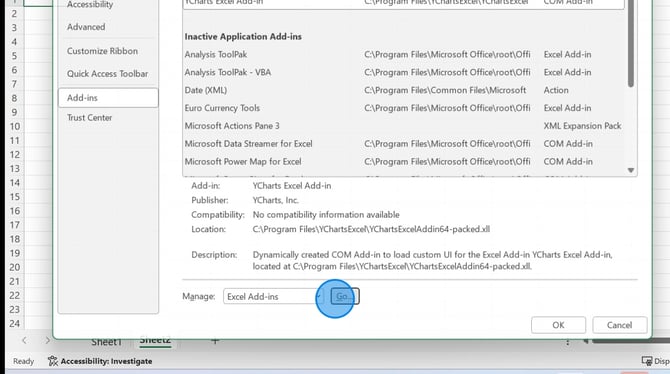
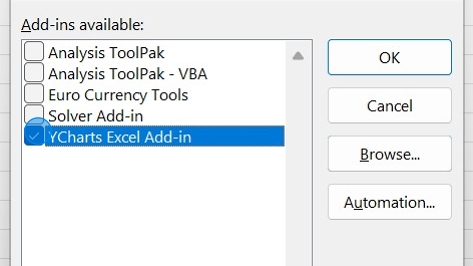
5. Check the box next to the YCharts Add-In, then select Ok.
Disabling Other Add-Ins
Occasionally, other add-ins can cause issues with the YCharts Add-In running properly. We recommend disabling any others while using the YCharts add-in to limit the amount of possible disruptions.
1. In Excel, select File, then select Options.
2. Click Add-Ins.
3. Select Manage, then click Go.
4. Uncheck the boxes next to the add-ins you want to disable, then select OK.
%20Workflow%20-%20Step%200.jpeg?width=473&height=266&name=Windows%2011%20Professional%20(Build%2026200)%20Workflow%20-%20Step%200.jpeg)
Uninstalling and Reinstalling
Sometimes, the best thing to do is start with a blank slate and completely uninstalling the add-in and then reinstalling.
1. Open Settings on your computer.
.jpeg?width=670&height=497&name=How%20to%20Access%20App%20Management%20Settings%20on%20Windows%20-%20Step%200%20(1).jpeg)
2. Click on Apps.

3. Select Installed Apps.
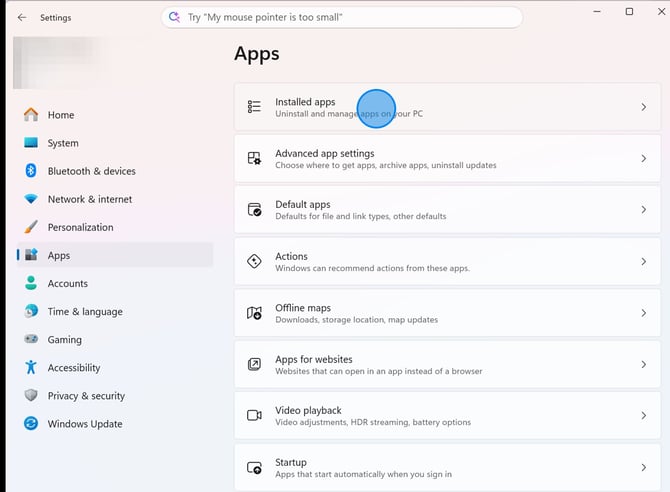
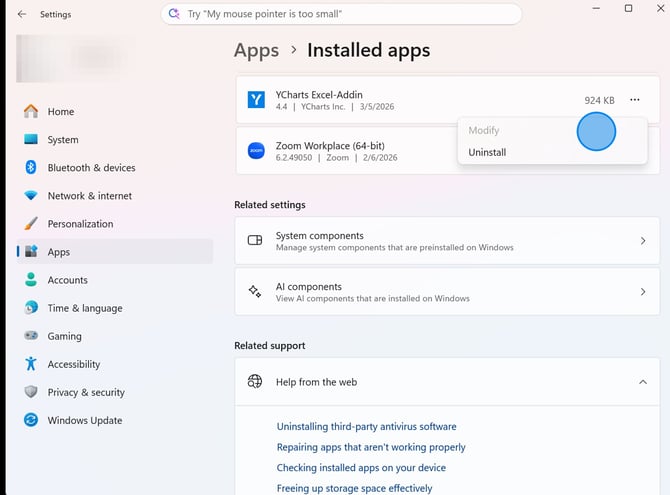
4. Find YCharts Excel-Add In and select Uninstall.
Further Troubleshooting
After trying all the above and still unable to get the Excel Add-In to work properly, we recommend confirming with your IT department that there are no firewalls or limitations that could be causing issues. You can also reach out to the support team at support@ycharts.com or messaging into our Live Chat and we can further troubleshoot.