
Getting Started
Client Settings
Frequently Asked Questions
Getting Started with Client Registrations
How to Create a Client
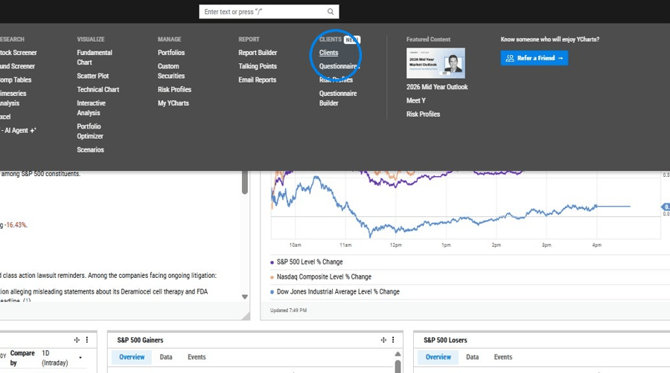
1. Open Clients from the Tools dropdown menu.
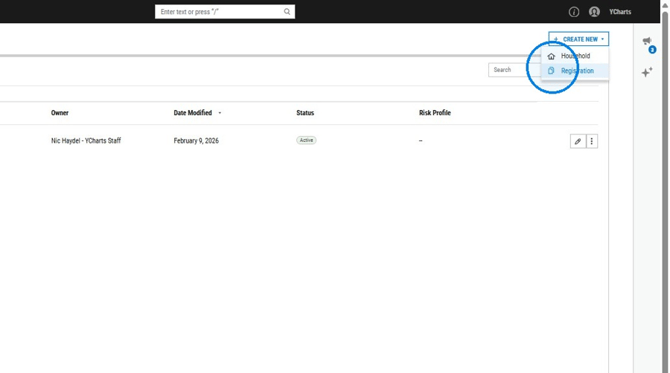
2. Select Create New --> Registration.
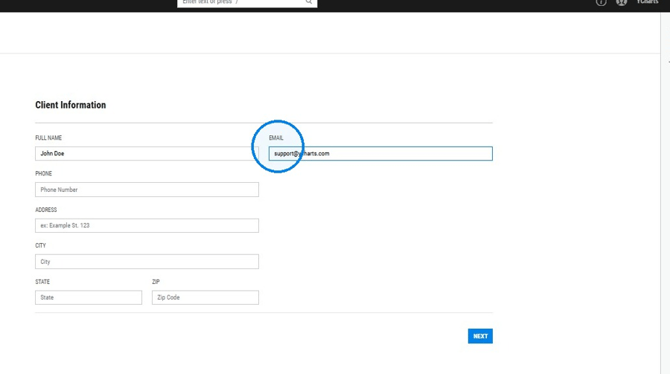
3. Enter in a name and email. All other fields are optional and can be filled in now or later. Then select Next.
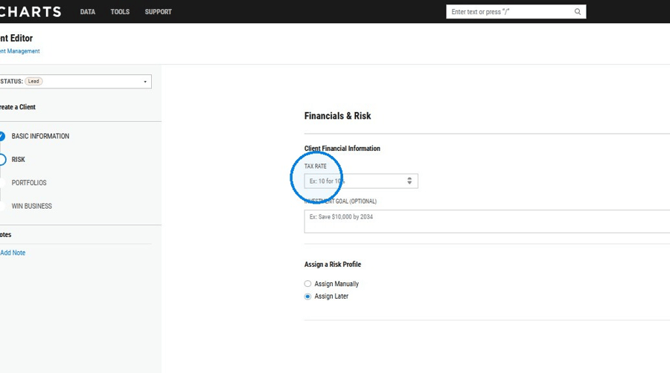
4. Fill out your client financial information and risk profile. These can be completed or now or you can come back to them later. Then select Next.
5. Add in your client's portfolios. If there are portfolios for this client that currently exist in YCharts you can use the search box to pull them in and associate them with this profile. If you need to create a Portfolio to represent a new account, you can select Create New and then choose between Manual Entry or Quick Extract (statement upload).
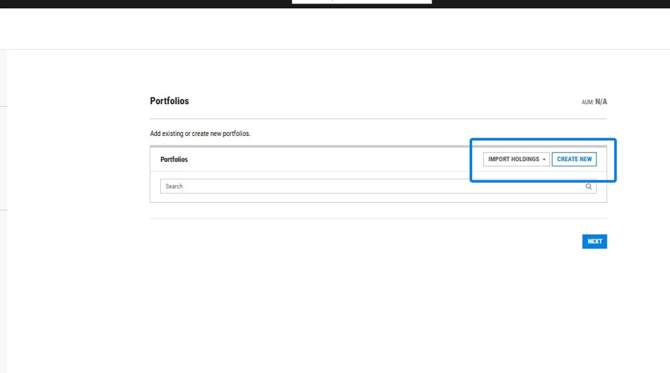
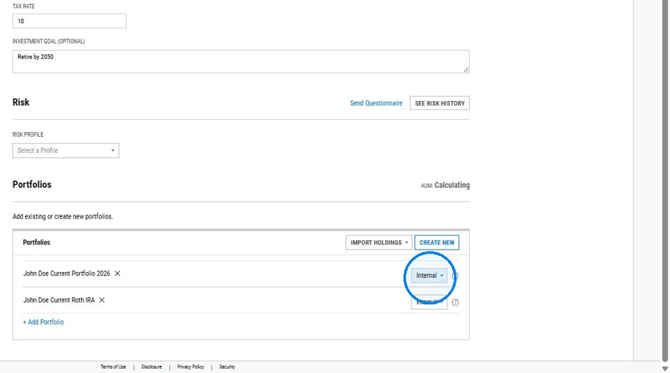
6. Mark the portfolios as either Internal or External.
- Internal portfolios are managed by your firm and are included in AUM calculations.
- External portfolios are held outside your firm. They are linked to this registration for a complete view of a client's full financial picture but are excluded from AUM calculations.
Note: If the Registration is in 'Active' status, you must have at least one Internal porftolio
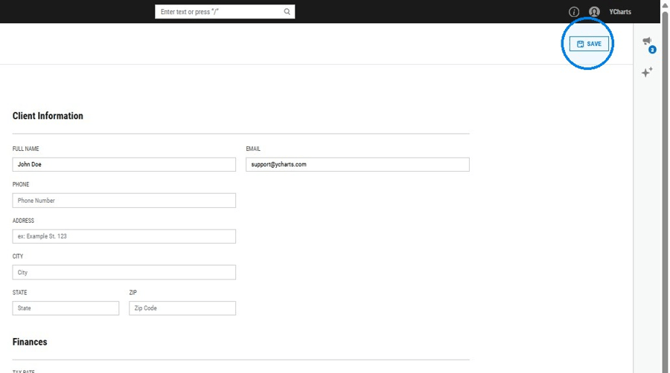
7. Once finished, select Save.
Client Settings
Status: Indicates where a client stands in your book of business.
- Active: A client whose portfolios are under active management. Their accounts will count towards your AUM.
- Lead: A prospect added to RPM who has yet to become an actively managed client. Their accounts do not count towards your AUM.
- Inactive: A client no longer under active management. Their accounts do not count towards your AUM.
Type: Controls whether a portfolio's value is counted toward this registration's AUM.
- Internal: Portfolios are managed by your firm and are included in AUM calculations.
- External: Portfolios are held outside your firm. They are linked to this registration for a complete view of a client's full financial picture but are excluded from AUM calculations.
Frequently Asked Questions
What is the difference between an internal and external client?
- Internal portfolios are portfolios that you manage as an advisor and contribute to your AUM. External portfolios are accounts you don't currently manage, and therefore don't contribute to your AUM, but still want to include to get a full picture of the client's financial picture.
What is the difference between a Registration and Household?
- A Registration represents a single client record or profile. A Household represents multiple underlying Registrations, or client profiles. Building a Household would make sense when you want to build multiple Registrations, or client profiles, at once. For example, perhaps you want to build out profiles for a family and have profiles for all members of the family in that Household.
What information do I need to create a client?
- Just a name and email to start. Everything else, including financials, risk profile, portfolios, etc. are optional during set up and can be added later.
Where do notes on client records come from?
- Notes can be added manually on any client record at any time.
Related Articles
Questionnaire Builder: Overview