
Getting Started
Reviewing and Tracking Questionnaires
Questionnaire Results
Frequently Asked Questions
Getting Started
How to Send a Questionnaire
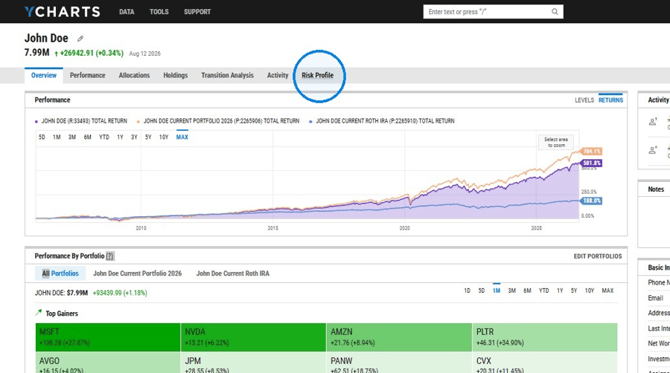
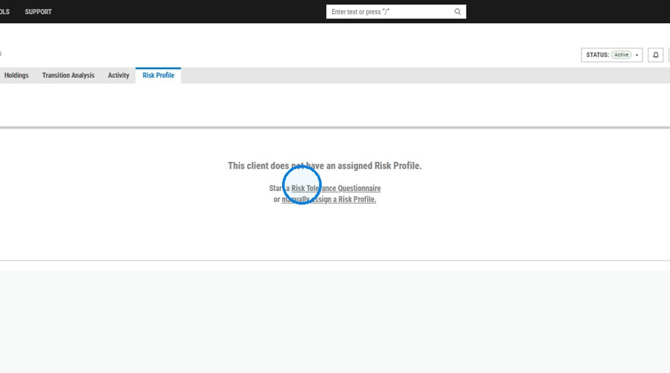
1. From a client's page, go to the Risk Profile tab and select Start a Risk Tolerance Questionnaire.
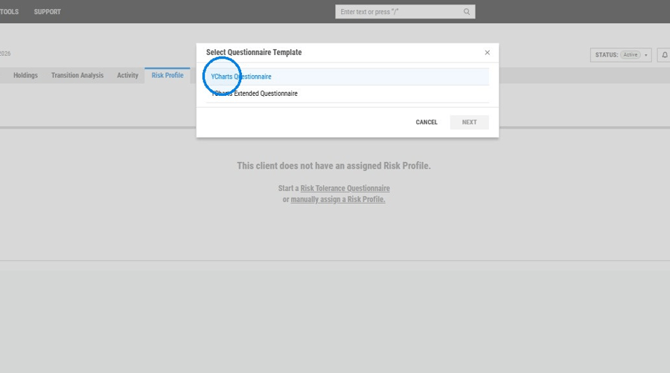
2. Choose the questionnaire you want to run and give it a name.
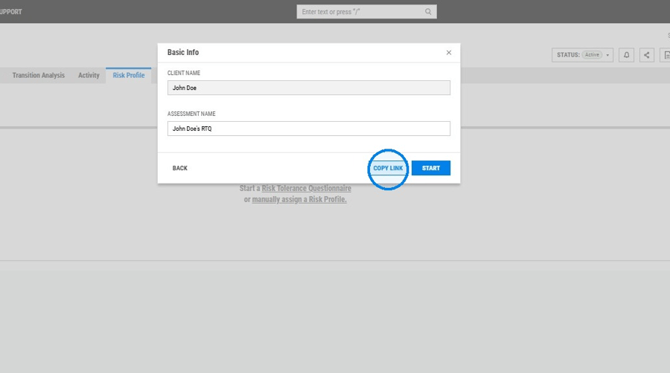
3. Choose to how to deliver the questionnaire:
- Start: complete it together with the client, live in the app.
- Copy Link: copy the link and send it via email to your client to complete at their convenience.
Reviewing and Tracking Submitted Questionnaires
Questionnaire Status
- An asynchronous questionnaire moves through a few stages you can track from the client's page or from your dashboard.
- Link Generated: sent, not started yet.
- In Progress: the client has started but not finished.
- Needs Review: the client has completed all questions and it's ready for you to review.
How to Review Outstanding Questionnaires
1. From your RTQ dashboard's Alerts module, any RTQs marked Needs Review will be flagged. Select the alert to open the Questionnaires page, which lists every submitted questionnaire and its status. 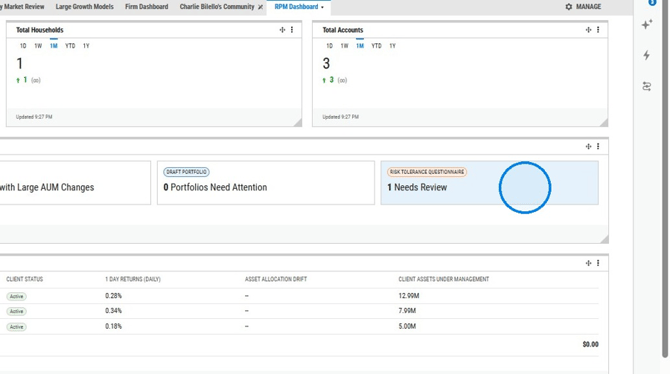
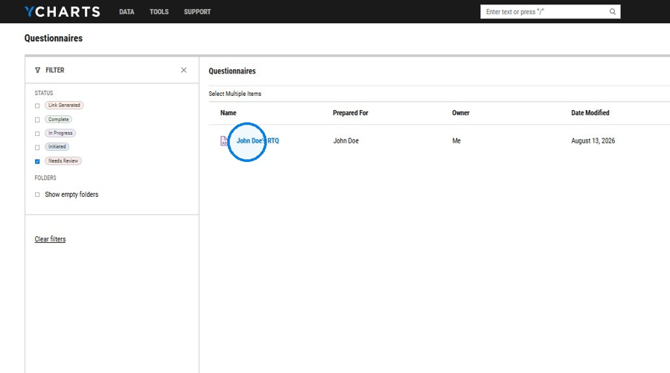
2. Select a submission top open it, review the results, and complete the evaluation by looking through the different tabs.
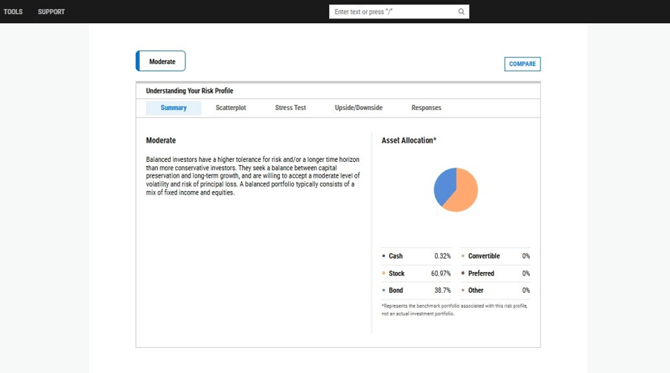
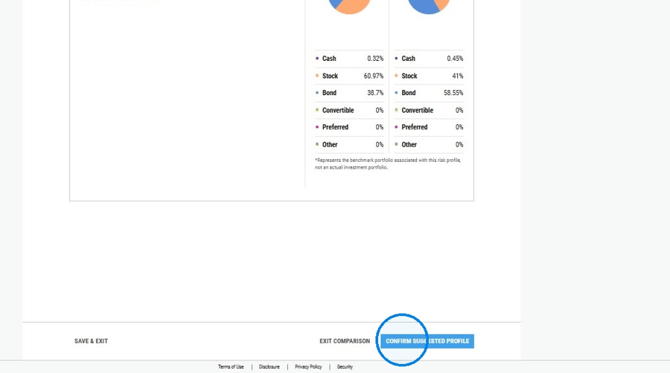
3. From here you can assign the risk profile to the client. Click here to learn more about Risk Profiles.
4. Back on the client's page, you can now see the risk profile data flow through.
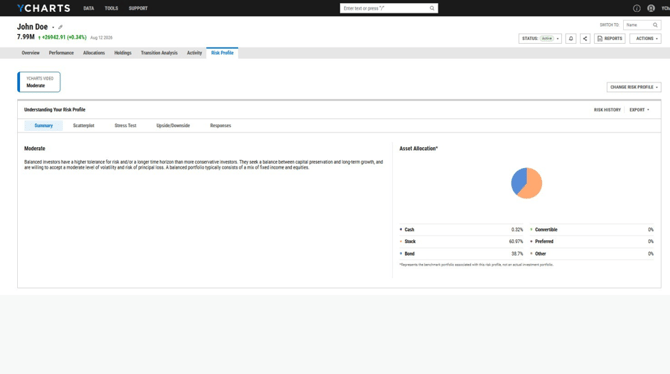
Understanding Questionnaire Results
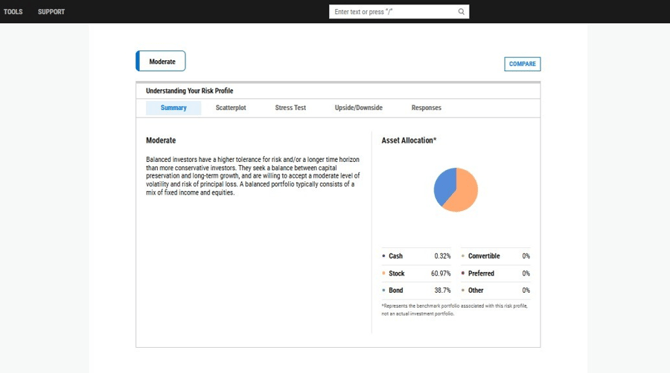
A completed questionnaire returns a suggested risk profile (for example, Moderate). It also provides a breakdown of the following:
Summary: includes the asset allocation breakdown for that profile.
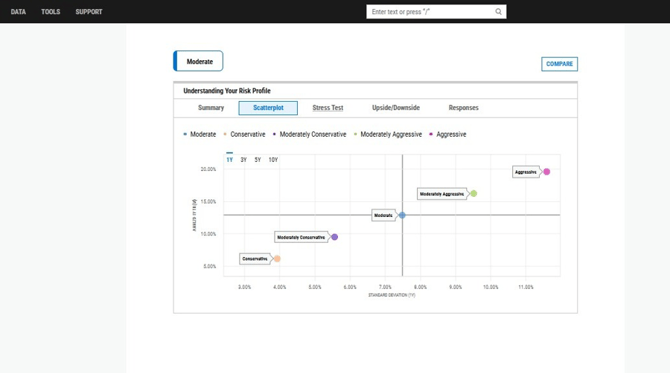
Scatter Plot: shows where the result falls relative to the efficient frontier.
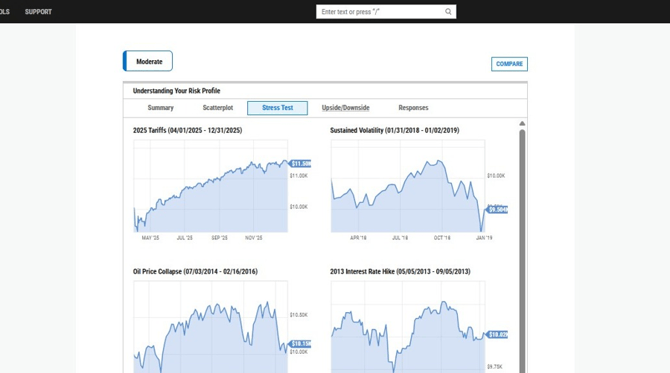
Stress Test: shows how the profile would have performed during past periods of market turbulence.
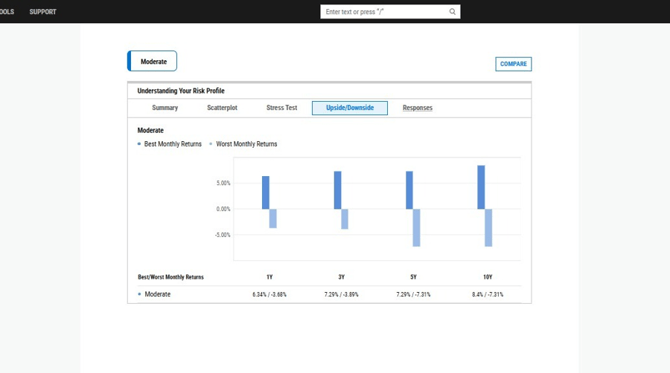
Upside Downside: review the best and worst monthly returns of the profile.
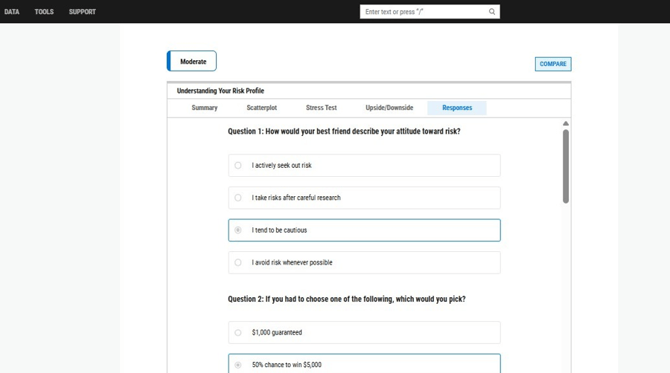
Responses: allows you to view the exact responses your client gave to each question asked.
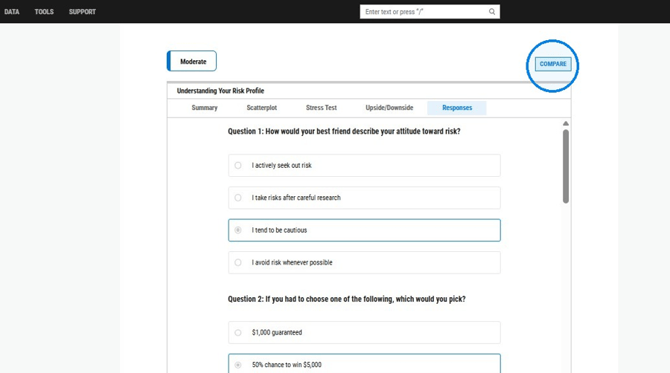
Compare: allows you to weigh the suggested profile against another candidate side by side. If you assign a different risk profile than the one the questionnaire suggested, you'll be asked to add a short note why, this is saved permanently to the client's risk history as an override.
Frequently Asked Questions
Can I export my clients questionnaire response?
- Yes, questionnaire responses can be exported via the Risk Profile tab on the client's page.
Do I have to use a questionnaire or can I assign a risk profile manually?
- Manual assignment is always available, a questionnaire isn't required for every client.
Can I run more than one questionnaire for the same client and compare results?
-
Yes, after a questionnaire is completed, you can select Compare to add a second result and view both side by side before deciding which to assign.
Does completing a questionnaire send anything back to my CRM?
- No, all results and assignments stay within RPM.