
The YCS Function within our Excel Add-In allows you to pull in historical data for quantitative metrics like Price, Total Returns, Risk metrics and more. Below is a quick walkthrough video that goes over this function as well as how to successfully pull in information.
Getting Started
Function Arguments
Frequently Asked Questions
Getting Started
How to use the YCS function
1. On the YCharts tab in Excel select the YCS function box.
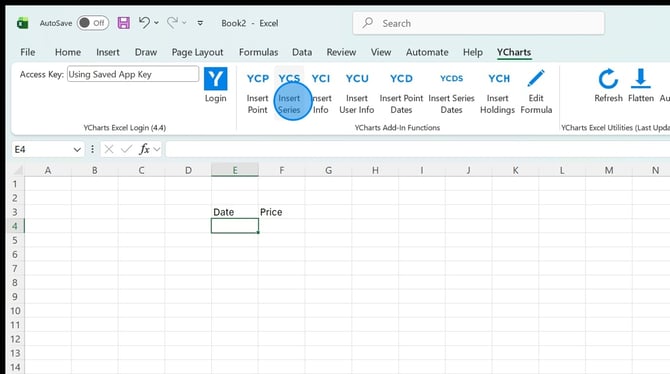
2. Enter in the ticker symbol, metric code, start, and end date fields. You can leave the end date blank, this will pull the series through today.
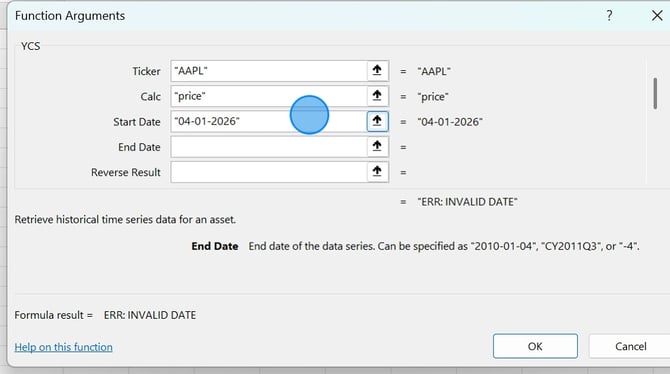
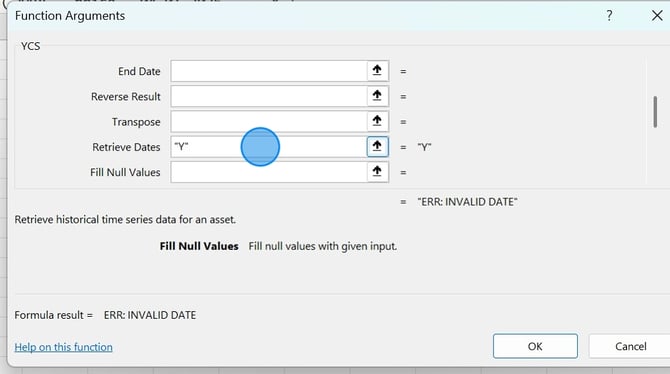
3. Optional: Fill out any additional function arguments, learn more about each argument here. Then click OK.
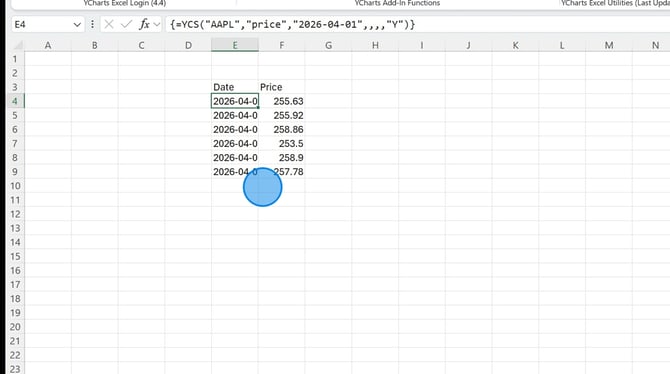
4. Data should now flow through into the spreadsheet.
Function Arguments
Ticker Symbol: The ticker symbol of the security (required)
Calc: The calculation/metric to retrieve (required)
Start Date: The start date of the data series (required)
End Date: The end date of the data series (optional)
Reverse Result: Reverses the data series, add a "Y"
Transpose: Moves the data from column to row, add a "Y"
Retrieve Dates: Retrieves the associated date, add a "Y"
Fill Null Values: What to display if a null value is retrieved. Learn more here.
Resample Frequency: This value specifies the desired resampling frequency of the series. Learn more here.
Fill Method: How null values are handled. Choose between "Forward" and "Backward"
Aggregation Method: The desired statistic applied to the data series. Learn more here.
Frequently Asked Questions
Can I share my excel file with colleagues?
- Excel files can be shared with colleagues as long as they also have an active YCharts account as well as have the YCharts Excel Add-In downloaded on their computer.
How do I make edits to the YCS formula?
- To make edits, you'll want to click on the cell with the formula then select Edit Formula in the YCharts ribbon at the top of the page.
Related Articles
YCD & YCDS Function Functions in Excel
Resample and Aggregate Functions in Excel