
How to Create a New Watchlist
Where to Use Watchlists
Save Fund Holdings as a Watchlist
Frequently Asked Questions
How to Create a New Watchlist:
1. Hover over Tools and select "Watchlists".
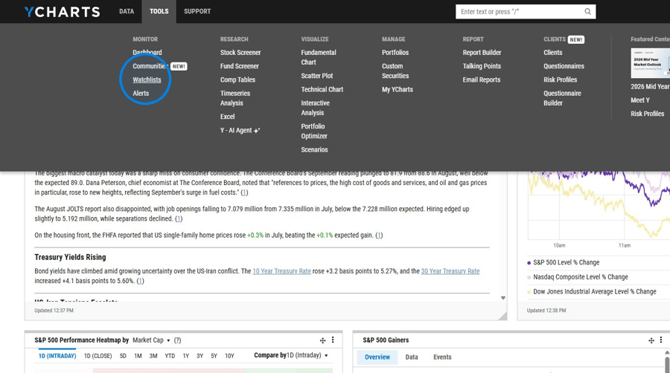
2. Select "Create New".
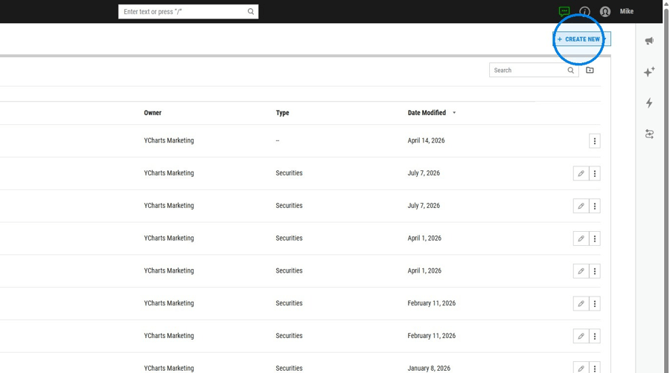
3. Select "Security List" to create a security list, or "Indicator List" to create a list of economic indicators.
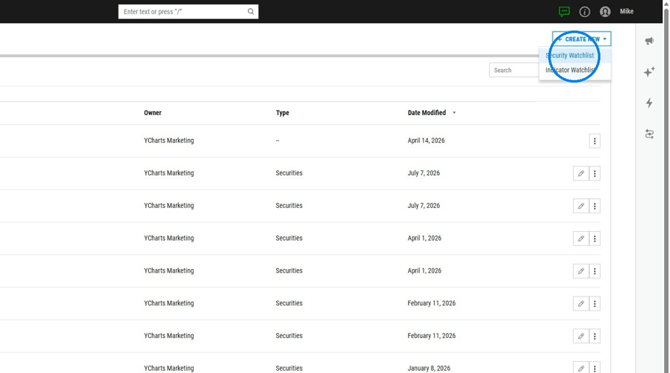
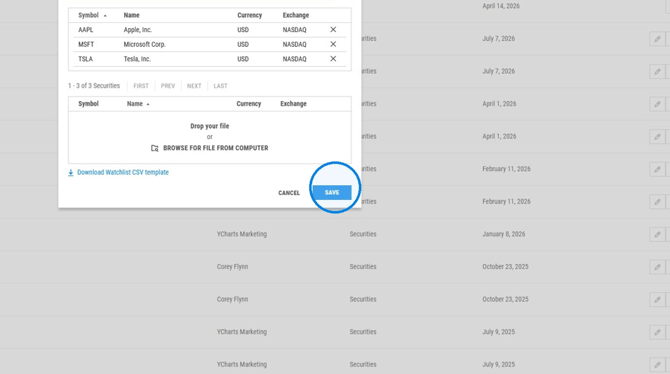
4. Enter a name for the watchlist in the "Watchlist Name" field, then select "Search Securities" and you will be able to copy and paste a list of tickers to add them all at once, or input one by one.
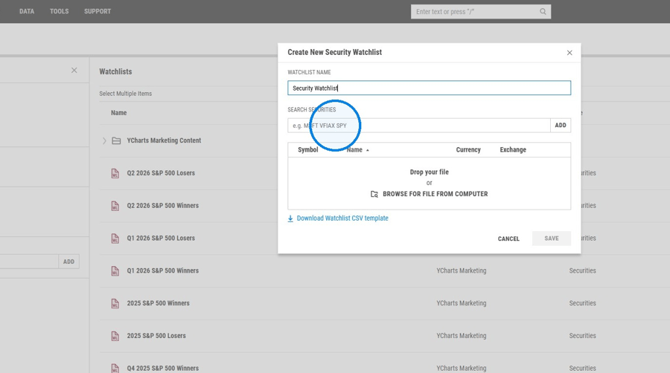
5. Lastly, Click "Save" and now your watchlist will save into your My YCharts for future use.
Common Areas You Can View and Analyze Watchlists:
There are three main areas you can input a watchlist into YCharts for analyzing, comparing and filtering performance:
Dashboards: You can add a watchlist into a dashboard to quickly reference a securities latest price, % change, and $ change in one simple view. You can do this by opening your desired dashboard, selecting "Add a Module" > "Lists" > "Security List" > "Select a List From my Library" > "My Watchlists"
Tables: You can add a watchlist into a timeseries or comp table to add more financial metrics and info columns to your list to better compare securities within a table. You can do this by opening the Comp Tables or Timeseries Analysis tool under the Tools bar, then selecting "Lists" next to the security search bar > "My Lists" > "Watchlists" > "My Watchlists". Here you can view all your saved watchlists and select the one you would like to import into the table.
Screeners: You can add a watchlist to a screener if you have a large list that you would like to narrow based on specific metric filters. You can do this by selecting "Modify" next to the securities section > "My Lists" > "Watchlists" > "My Watchlists".
How to pull a Watchlist into any available tool in YCharts:
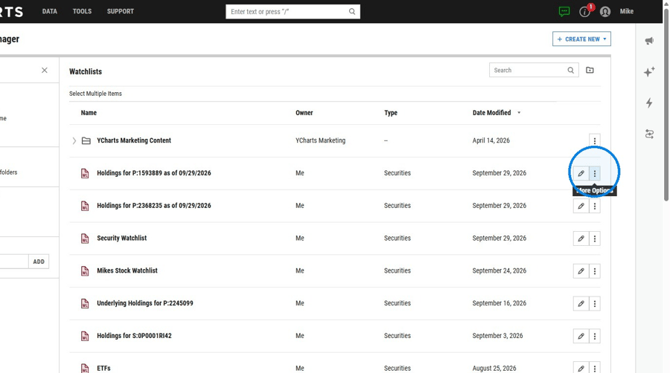
1. Open the Watchlists Tab In the Tools bar and select the three dots next to your watchlist.
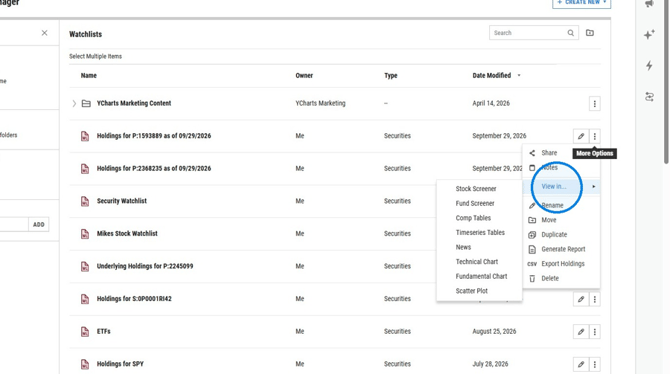
2. Click "View in..." and select any of these tools where you'd like to view your watchlist.
How to Save a Mutual Funds Holdings as a Watchlist
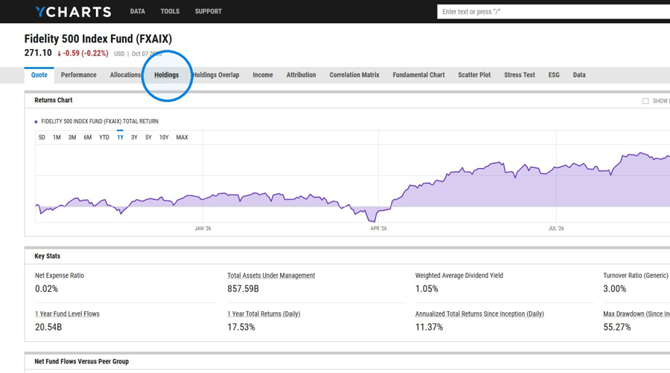
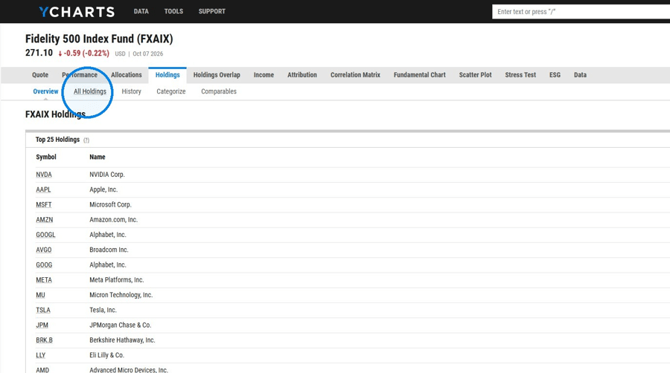
1. Open the Funds main page and select the "Holdings" tab.
2. Click on "All Holdings".
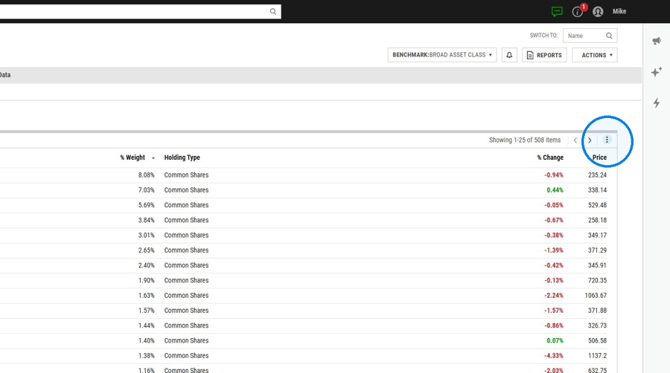
3. Click the holdings options menu.
4. Click "Save as Watchlist".
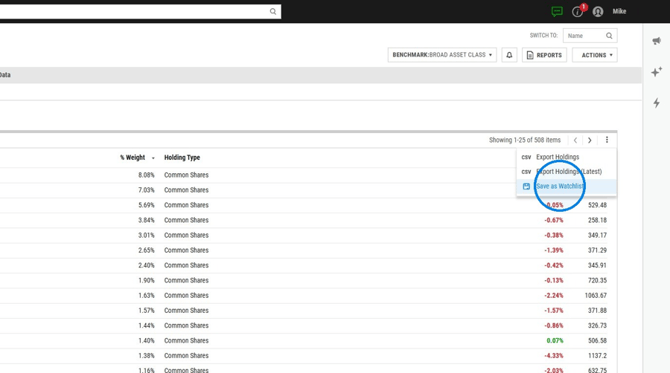
5. You will be able to view this new watchlist in the Watchlist tab located in the Tools bar.
Frequently Asked Questions
How can I view my portfolios underlying holdings in a watchlist, rather than the funds it is composed of?
- You can do this by following the same steps listed above for exporting a portfolios holdings, however, after you have reached step 3, you will want to reference the upper right hand side where there is a small box that says "Holdings". By selecting this, and changing it to "Underlying Holdings", you can view all the stocks that are underlying within the portfolios funds.
What security types can be pulled into a watchlist?
-
You can list all security types supported in security lists. To create a watchlist with economic indicators, select the Indicator Watchlist rather than Security Watchlist when creating.
How many securities can I include in a watchlist?
-
You are able to save up to 3,000 different securities into one watchlist.