
The YCP Function within our Excel Add-In allows you to pull in any quantitative metric available within YCharts. Below is a quick walkthrough video that goes over this function as well as how to build out a formula.
Getting Started
Function Arguments
Frequently Asked Questions
Getting Started
How to Use the YCP Function
1. Open the YCharts tab in Excel and select the YCP function box.
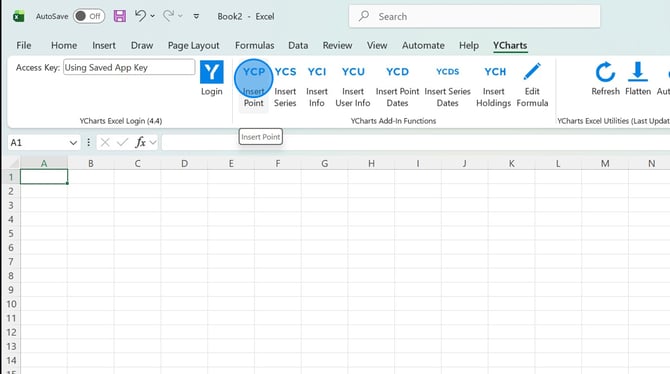
2. Add in the ticker symbol and metric field. Then select OK.
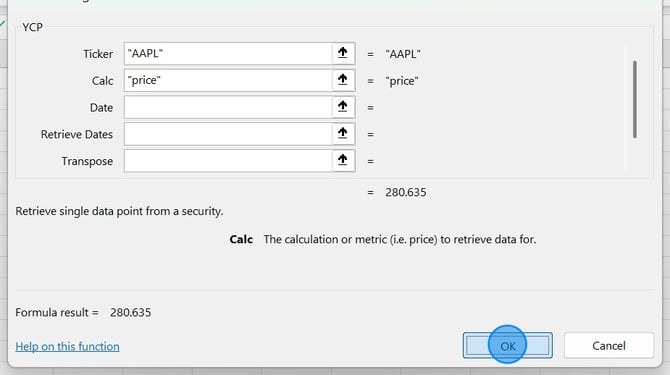
3. The data should now flow through into the spreadsheet.
.jpeg?width=670&height=374&name=How%20To%20Use%20The%20Insert%20Point%20Tool%20-%20Step%202%20(1).jpeg)
Function Arguments
Ticker Symbol: The ticker symbol of the security (required)
Calc: The calculation/metric to retrieve (required)
Date: The date you want to pull in data for.
Retrieve Date: Retrieves the associated date, add a "Y
Transpose: Moves the data from column to row, add a "Y"
Fill Null: What to display if a null value is retrieved. Learn more here.
Frequently Asked Questions
Can I share my excel file with colleagues?
- Excel files can be shared with colleagues as long as they also have an active YCharts account as well as have the YCharts Excel Add-In downloaded on their computer.
Can I pull in more than the top 25 holdings?
- No, at this time we are limited to 25 holdings. To pull in the full list of holdings, you will need to export this data from the security's holdings tab.
How do I make edits to the YCP formula?
- To make edits, you'll want to click on the cell with the formula then select Edit Formula in the YCharts ribbon at the top of the page.